

BigCommerce Product Locator Install Guidance
How do I install the product locator in BigCommerce?
You must be able to edit theme files to install the product locator on a BigCommerce site. BigCommerce recommends you make a copy of your theme before editing. More information from BigCommerce support is here: copying themes in order to edit theme files.
Make a Staging Copy (Best Practice Recommendation)
Before installing the embed code, make a duplicate of your site for staging purposes so that you are not editing the live environment.
- Copy your current theme file before making edits so you can always revert back to a clean copy.
- Navigate to Storefront Design > My Themes > Current Theme > Advanced > Make a Copy.
- Give your theme a Theme Name. Click Save.
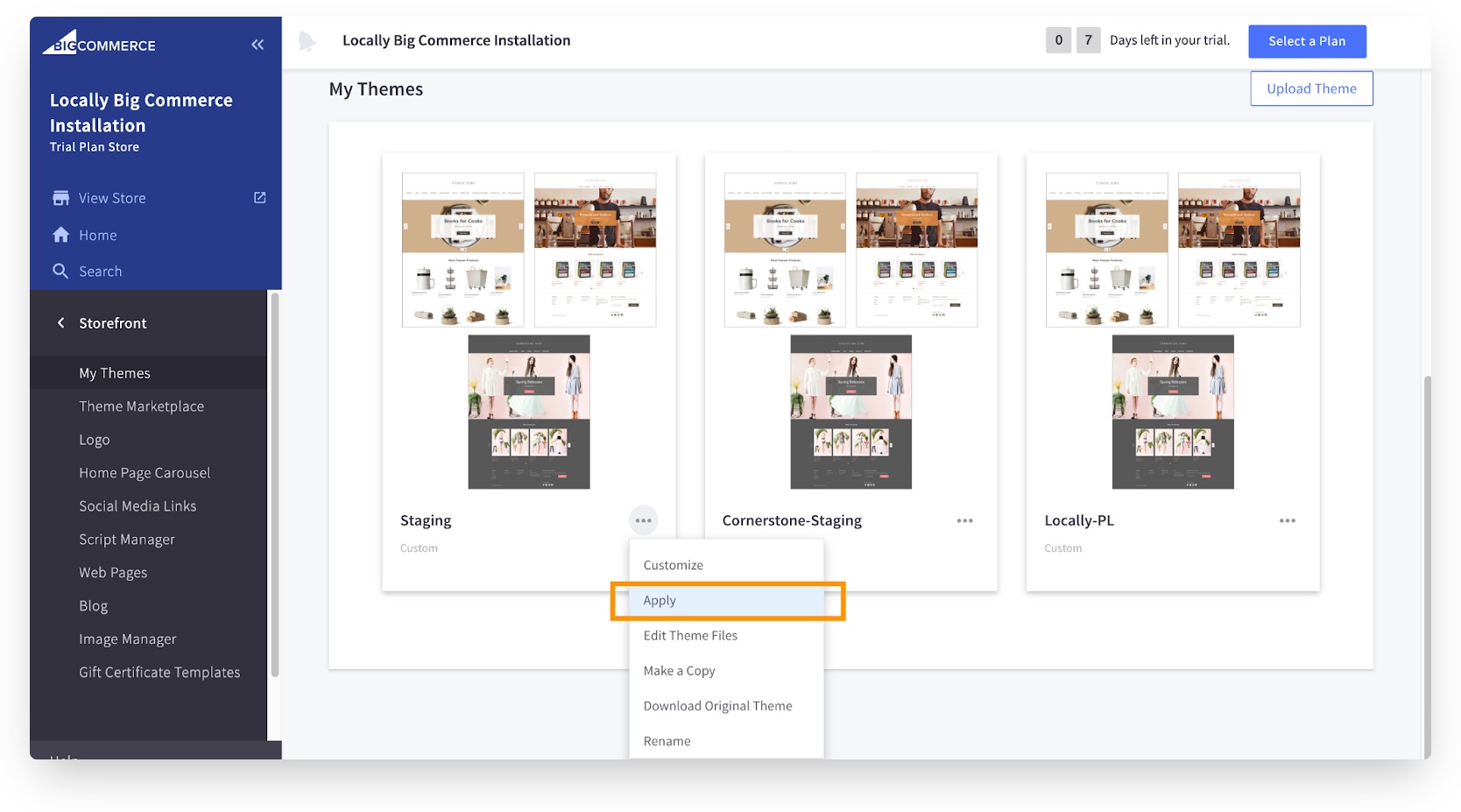
Apply the new theme. Find your copied theme below your current theme and select the three dots to open the menu. Click Apply.
Install the Embed Code
Click the Customize button. This will open the Page Builder. Click Theme Styles in the left hand navigation. Select Edit Theme Files.
The next part can be tricky because theme files are named differently.
First of all, there is one parameter in the embed code that you need to change before pasting in. In our example below we changed the UPC parameter.
This utilizes the UPC that you have supplied in your BigCommerce product catalog. This snippet ensures that if you have a product UPC set for this product, BigCommerce will render the Locally Product Locator and inject the UPC into the Locally embed code. As long as your UPC matches the UPC that we have in our own product catalog, the Product Locator will work as expected.
IMPORTANT NOTE
Please note, while our team provides the code and can provide guidance we are unable to write any scripts or touch your CMS.
In this theme example, I went to product-view.html. I hit CTRL+F to find the ?Add to Cart? section. Paste the embed code beneath there. Click Save & Apply file.
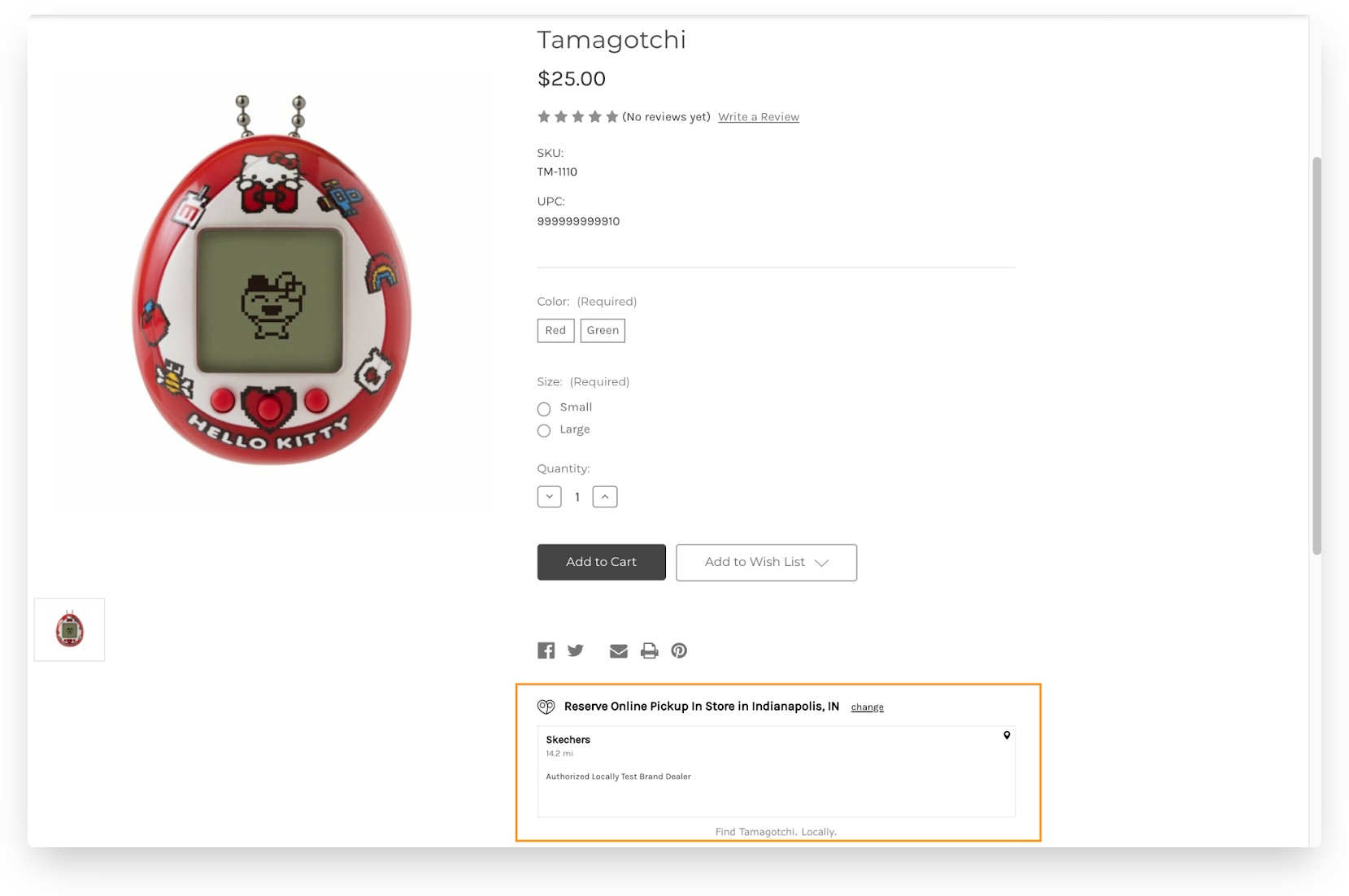
Navigate to a product page and you should now see the Locally Product Locator widget below the Add to Cart option (or wherever you chose to place it).
Updated 3 months ago