

Salesforce
How do we design and install the product locator?
Design
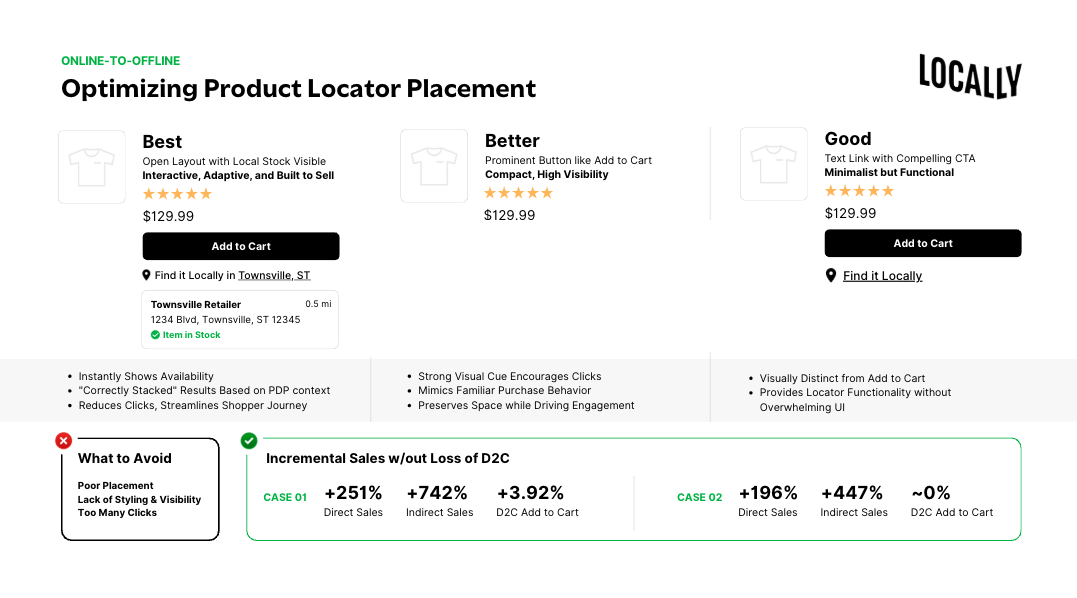
The product locator inherits the brand's existing styling, and additional CSS can be added on the site. The main design choice is the presentation.
Installation
Your onboarding specialist will send you a product locator wizard similar to this, but with code unique to the brand integration. With the wizard, try different formats at any time. To access the embed code, click the blue tools icon to open the Wizard. Scroll down to Share & Embed. Copy the embed code and paste it onto your PDP template.
Here is a rundown of all options.
Product Locator/Dealer Locator Choose Product Locator Style Preset Recommended: Stacked or Horizontal Dealers Primary Color Recommended: Add to your site CSS. If you cannot, you can add here. This color selection will affect button colors in Dealers Stacked setups and header text and pins in Horizontal Dealers setups (shown below in red) To add this to an existing Product Locator, add "color_0": "#000000", to the embed code, where 000000 is the desired Hex Value. 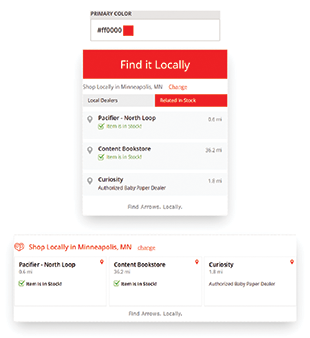 Secondary Color This color selection will affect dealer names and "In Stock" callouts in Horizontal Dealers setups (shown below in yellow). To add this to an existing Product Locator, add "color_1": "#000000", to the embed code, where 000000 is the desired Hex Value.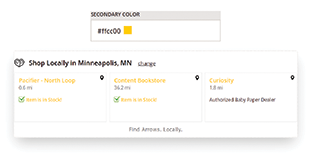
Hover Color
This color selection will affect the hover color for buttons and dealers (shown below in blue).
To add this to an existing Product Locator, add "hover_color_0": "#000000", to the embed code, where 000000 is the desired Hex Value. 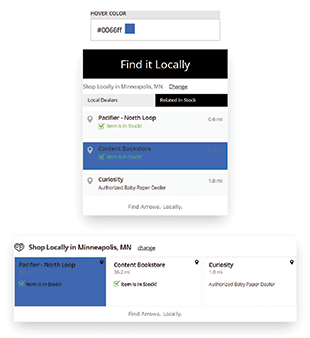
Hide Button The hide button checkbox enables/disables a button that, when clicked, can open a dealer locator window. The button display text is customizable in Button Text.
To hide the button on an existing Product locator, add "always_hide_button": "1", to the embed code. 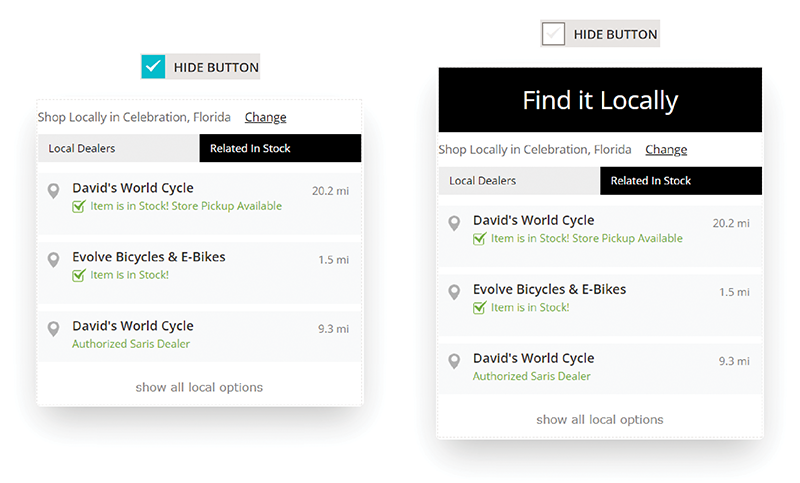 Button toggles all results When this feature is enabled, the button becomes a dropdown toggle for the dealer results. To enable this feature on an existing Product Locator, add "button_toggles_all": "1", to the embed code. Button Text
By default, the Dealers Stacked button displays "Find it Locally" and the Horizontal Dealers button displays the Locally heart icon. Write in your desired text.
To customize this text on an existing Product Locator, add "button_text": "x", to the embed code, where x is the desired text. 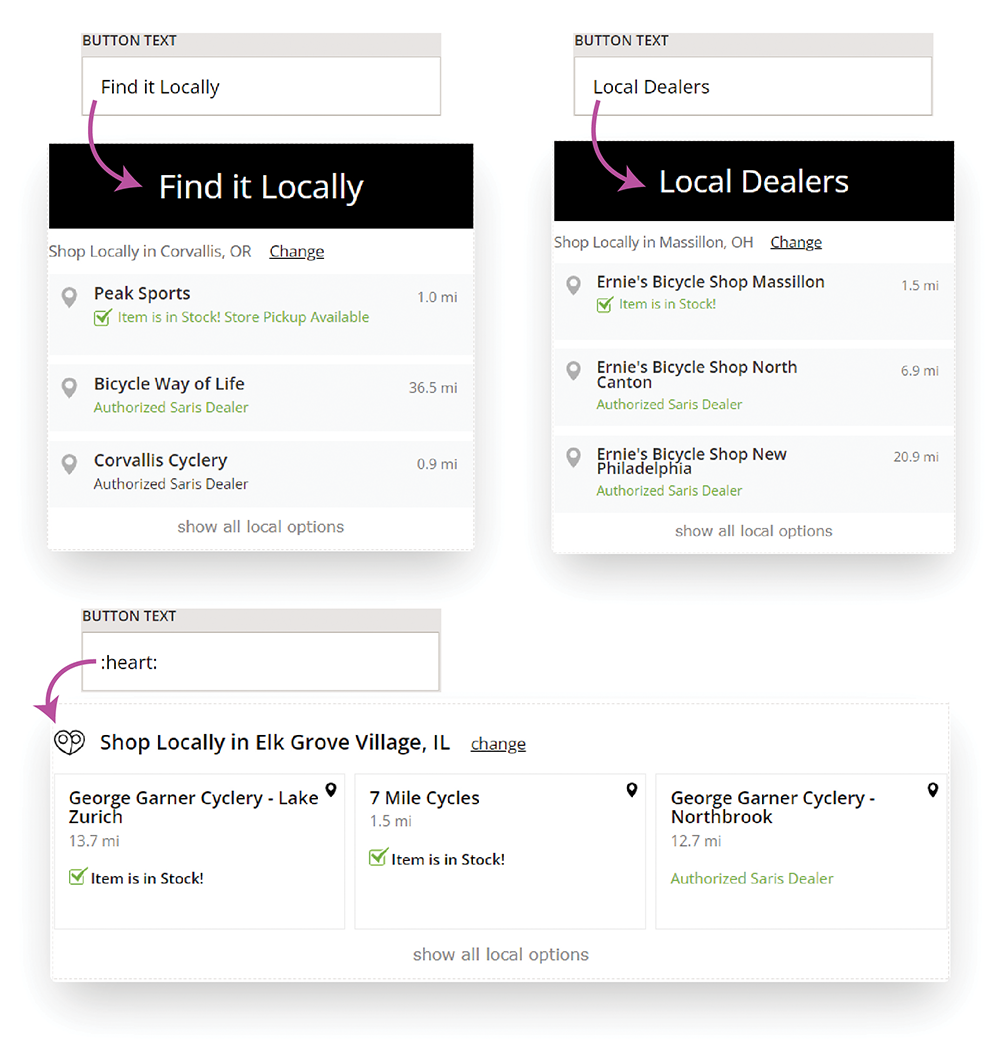
IMPORTANT NOTE
The UPC or Style Number parameter must be injected per PDP to have the intended functionality. The page needs to send us either the UPC or style number so it can make the product in our catalog to serve up the correct dealers for that item. Most brands write javascript to programatically pull the UPC or Style Number from each page. Our team provides the code and guidance, but we are unable to write any scripts or touch your CMS.
A common error is inserting the same style or UPC for all pages or leaving that field blank. Best Practice Recommendation We recommend installing via UPC, instead of by style.
Depending on the product array, some product works best with a reload per selection. For example, with shoes, if a shopper chooses women's size 9, it is generally best to search for that exact item so it won't jump sizes based on what is in stock nearby. If it is a kayak in three different colors, a shopper would likely want to see any color nearby, and so a reload would not be recommended in this case.
Here is how to add a reload
Our Product Locator can respond to a variant selection on your PDP to locate that specific variant in a nearby store.
The lcly_reload_0 function is defined to update the UPC value in the lcly_config_0 object. It then rebuilds the query string with the updated UPC value and assigns the new URL to the src attribute of the <script> element with the ID lcly-script-0. This will trigger the reload of the Locally product locator with the updated configuration.
Call the following function to reload the Product Locator: To reload the Locally product locator, you can define a function called lcly_reload_0 and pass the updated UPC value as an argument.
lcly_reload_0({ upc: ?XXXX? });
You want to be sure to place this function after your elements load so it is best practice to place this below your product locator script.
Example of Product Locator Reload
The mechanism will differ case by case, but the overview is as follows:
Find the ID of your Product Locator widget. Look at the widget embed code for lcly-config-*. For example, you might find lcly-config-0. The -0 is the widget ID.
Decide when you want to reload the Product Locator widget. Typically, this reload should happen when the user updates the variant selection on your PDP. This can be done in various ways. For example, for implementations on Shopify: Shopify triggers an event that the widget can listen for. The following snippet may be used to listen to this event and trigger the reload:
<scrpt> var el = document.querySelector('select.original-selector'); el.addEventListener('change', function(event) { lcly_reload_0({ 'upc': event.detail.barcode }); }); </scrpt> JavaScript This example snippet looks for any changes to a select element tagged with the .original-selector class. When changing variants, the element fires an event, giving us details of what changed. We then call the lclyreload* function with the ID from the first step. In this case, lcly_reload_0. We pass the function an object with attribute upc and the UPC of the variant the user selected (event.detail.barcode in this case). Please note that the information provided above is intended to assist companies with technical teams. However, it is important to understand that this solution may vary depending on the platform and the specific implementation within that platform. It is not a universal solution that can be applied uniformly in all cases.
If you can only install via style, note that it needs to be a true style/group ID as we don't support SKUs.
Installing multiple brand UPCs for enterprise brands and OEMs
To install a product locator that pulls from multiple brands, you'll need to do a UPC install. No other adjustments are necessary
Display Price On display or click, the display price will be the MSRP provided, the nearest store price, or a range of prices depending on the area. If you'd like to display only MSPR on the first screen, let us know. The in-store price will always show in-cart.
Once you have your product locator installed, please send the onboarding specialist a link to the staging site (and username/password if needed) so that we can confirm the Product Locator is working as desired. The best indicator that the Product Locator is working correctly is seeing the product info on the map pop-up from the Product Locator. You should see the product thumbnail, product name, and Unit MSRP (if you are displaying prices.)
CMS Guides
We have additional info for some common CMS providers. Please consult with your CMS provider for specific questions not covered in our guidelines.
BigCommerce Product Locator Install Guidance Shopify WooCommerce Salesforce Adobe/Magento
Next Step: Onboarding: Planning Ongoing Maintenance
adding words to test something
Updated 3 months ago