

Helpful Brand Reports
What are some useful reports that I can download?
Analytics
Your client success manager will go over definitions with you.
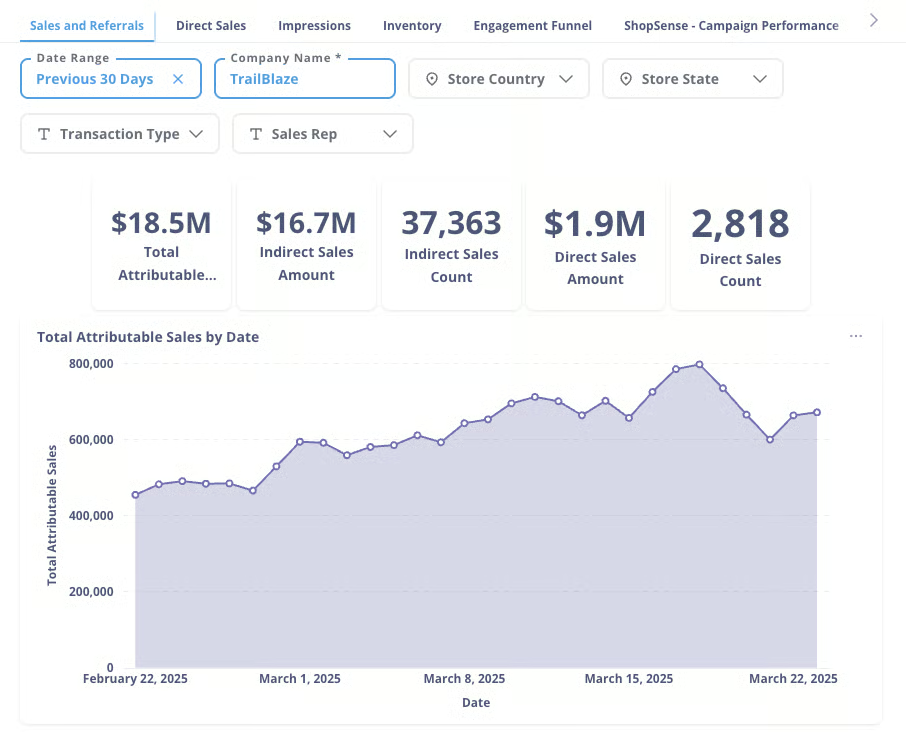
Go to Analytics > Brand Analytics https://www.locally.com/station/panel/bi/index . Open the Sales & Referrals tab and select the date range.
Click on the three dots to the right of the data to download your reports.

Direct Transactions
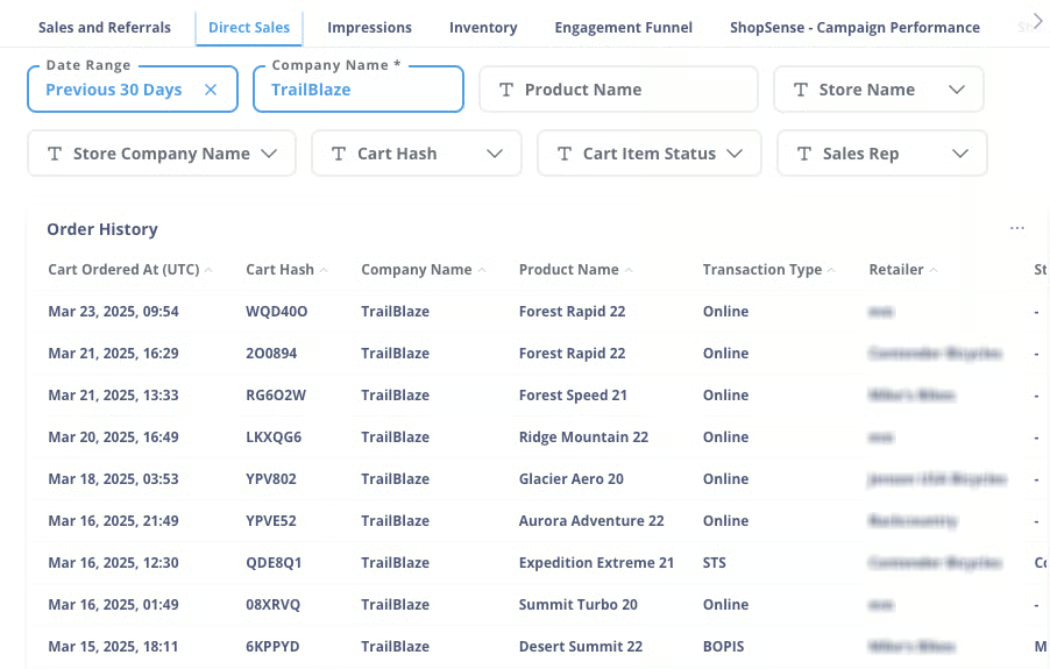
Go to Analytics > Brand Analytics https://www.locally.com/station/panel/bi/index. Select the Direct Sales tab to see recent transactions.
Confirmed = Transaction was completed by retailers, Retailer Declined = Retailer couldn't fulfill the order. These don't include indirect orders where the shopper went directly to the store.
Shoppers Who Gave Marketing Consent
Customers will see options to grant marketing consent to both the retailer and the brand in the product locator.
Go to your Order History panel, adjust the search parameters if needed, and export the results. In the exported CSV file, the Marketing Consent - Brand column will indicate whether a customer has provided this consent, and you can capture their information directly from this file.
Potential Retailers Sharing Inventory
By default, we add dealers to your dealer list that we detect sharing brand UPCs. If you have opted out, you can review the dealers who are potentially sharing your inventory, but are not authorized/on your dealer list.
-
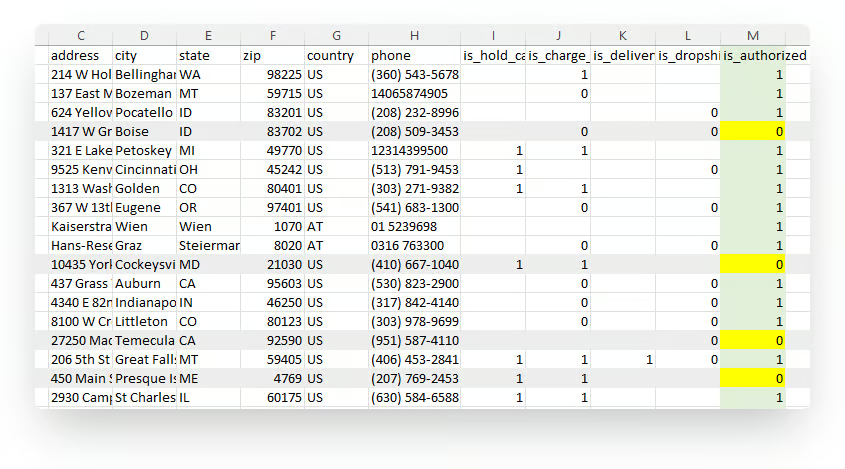
Go here https://www.locally.com/station/panel/company_dashboard/index and select Download Inventory Report.
-
Sort via Column M, "is_authorized"
-
Review any retailers with a 0. If they should be authorized accounts, highlight them on this list and send to your Client Support Manager to add to your dealer list.
Updated 4 months ago