

Set Up Same Day Delivery
How do I offer same-day delivery?
Set Up Same-Day Delivery
For US retailers using Buy It Locally
Same-Day Delivery (SDD) lets shoppers buy items that are in stock at your store and have them delivered to their door the same day, often in under an hour, by a third-party courier. It's an add-on to Buy It Locally (BIL) that you can turn on yourself from your Locally dashboard.
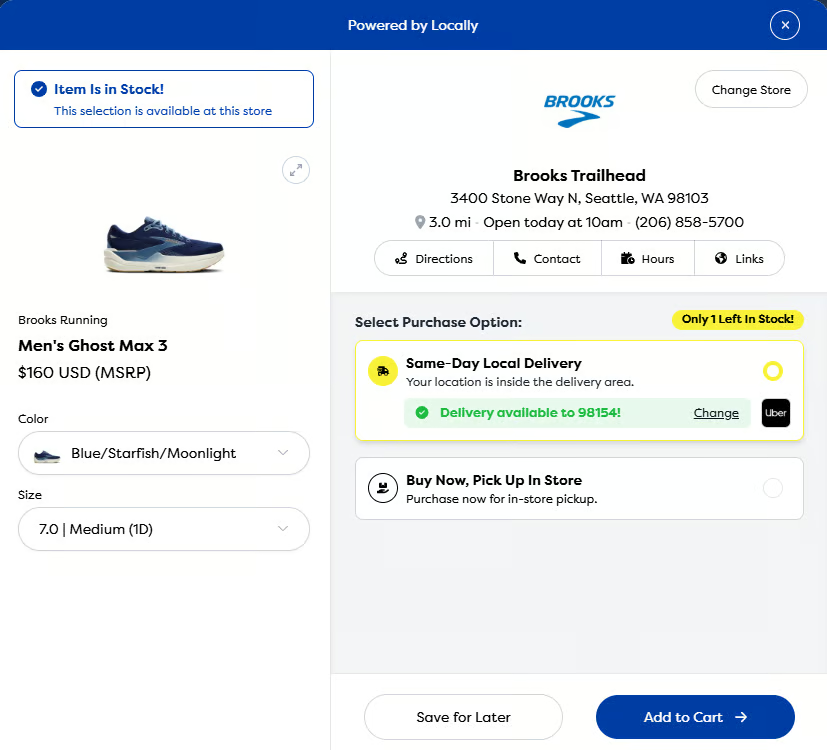
This article covers what SDD is, how to turn it on, and how to run deliveries day-to-day. If you're a shopper looking for help with an order, see this article instead.
How Same-Day Delivery Works
Turning On Same-Day Delivery
Running a Test Delivery
Fulfilling an Order
Cancellations, Refunds, and Exceptions
Getting Help
For Brands
How Same-Day Delivery Works
When a shopper sees an item is in stock at your store—on your storefront, on a brand's website, or anywhere else Locally's tools appear— they'll see "Same-Day Local Delivery" as a checkout option alongside In-Store Pickup.
Here's what happens next:
- The shopper enters their delivery address and sees the available delivery fee.
- They complete the checkout. Their card is authorized but not yet charged.
- You get a notification (email, text, or both) and confirm the order.
- Once all items are confirmed, Locally automatically dispatches a driver from the best-available carrier to your store.
- You hand the package to the driver at pickup.
- The driver delivers to the shopper. You both get notifications at each step, plus a drop-off photo when available.
During the whole process, your order screen shows a live map of where the driver is and their status.
Our carrier network
SDD is powered by a multi-carrier network. Today that's Uber, with Roadie (a UPS company), and DoorDash. When a shopper checks out, we fetch quotes from every carrier enabled for your store and automatically route the order to the best-available option, which is usually the cheapest. You don't have to pick a carrier.
Carrier availability for each of your stores is shown in the Delivery Carriers section of your Local Delivery Setup panel.
Product-aware eligibility
Each carrier has its own restrictions on what it will deliver. We check each product against the carriers enabled at your store and only show Same-Day Delivery to the shopper when we can actually fulfill it. If nothing can deliver the item, the SDD option is hidden and the shopper still sees In-Store Pickup.
Turning On Same-Day Delivery
Prerequisites
To offer SDD, your store needs to be:
- US-based. SDD isn't available outside the US yet.
- Accepting payments for in-store pickup (BOPIS) through Buy It Locally. SDD is an add-on to BIL payments. If you're only offering Reservations, you'll need to enable payments first by following these setup instructions.
- Connected to Stripe. SDD transactions are processed through Stripe, the same as BIL payments.
Note on restricted products: Stripe doesn't allow firearms, ammunition, or certain other restricted product categories. If your store shows those items online, you won't be able to use Stripe and therefore won't be able to offer SDD or BIL payments. You can still offer Reservations for In-Store Pickup.
Self-enable from your dashboard
The Same-Day Delivery card in your dashboard now always shows an Enable button. If BOPIS isn't enabled yet, clicking Enable opens a dialog explaining that BOPIS must be enabled first before Same-Day Delivery becomes available—follow the BIL setup instructions to enable payments, then return to enable SDD.
If you're already accepting BIL payments, you can turn SDD on yourself in a few minutes:
- Log in to your Locally dashboard.
- Open the Local Delivery Setup panel.
- Review carrier availability for each of your stores under Delivery Carriers.
- Configure your Delivery Settings for each store. 1. Pickup Notes for Courier is your opportunity to add special instructions for the driver to note with the pickup. 2. Select Rate lets you decide to have the shopper pay the carrier's rate or offer a flat rate for each delivery. 3. Optional DropoffRequirements: - Require Shopper Signature at Dropoff Signature is typically used to reduce "porch pirate" risk - Require Shopper Identification at DropoffID is typically used for alcohol. - Require signature or ID only on orders over a set amount. On the Local Delivery Screen you can set an order-value threshold so that a signature or ID is only required when the order total exceeds the amount you specify (for example, require a signature only on orders over $250). By default, no threshold is applied—if you enable a dropoff requirement without setting a threshold, it applies to every order regardless of value. - Note that stricter requirements increase the chance of returns . If a shopper isn't home, the item comes back to your store, and you may be charged for the return trip depending on the carrier.
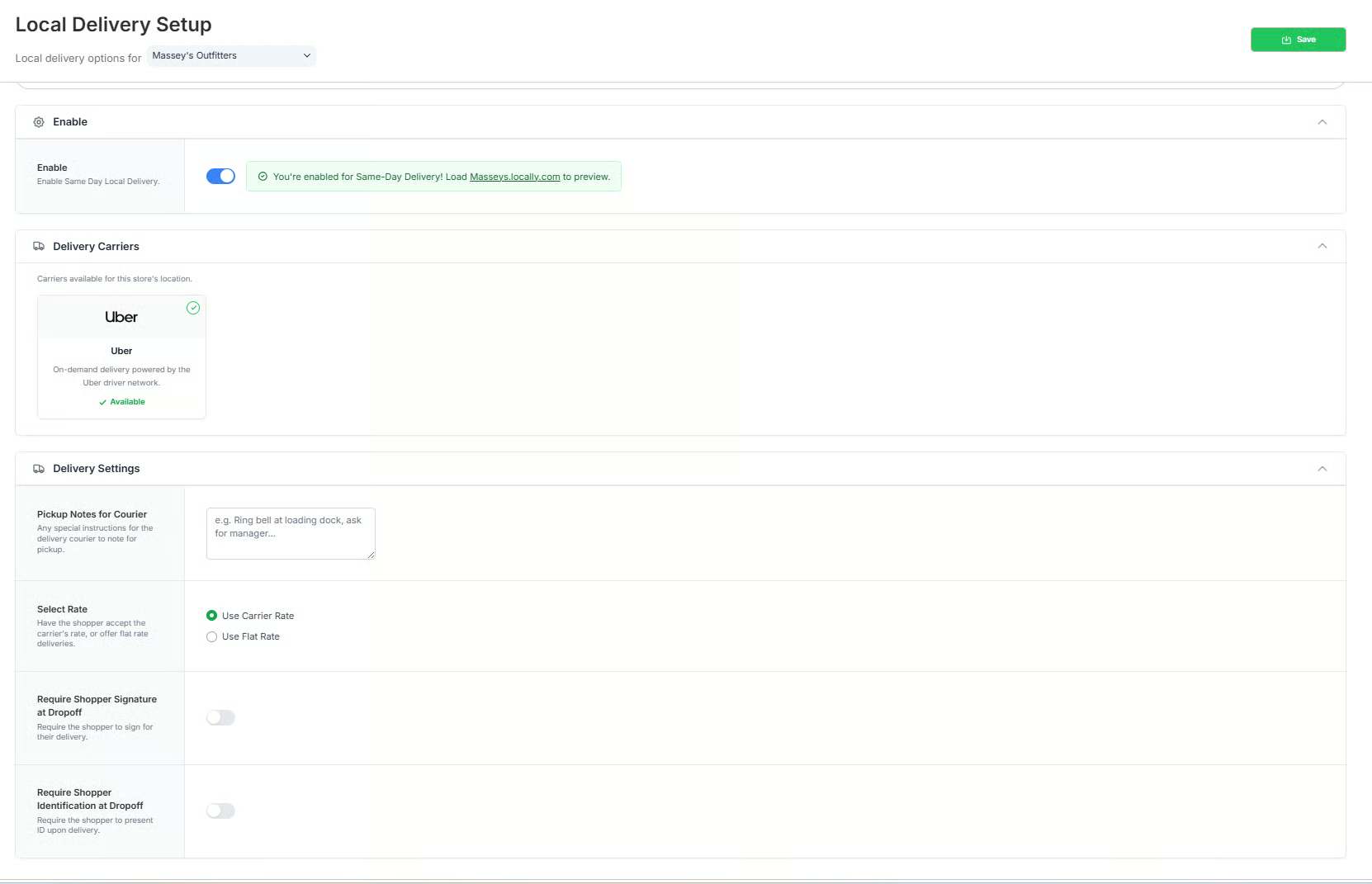
That's it. You'll start seeing orders as soon as shoppers find your stock.
Running a Test Delivery
Optional. Once SDD is enabled, you can place an order for yourself to experience the full flow. You can refund the product cost afterward, but not the delivery fee. It's a live transaction with a real driver.
Fulfilling an Order
Notifications and response time
When an order comes in, you'll get a notification through whatever channel you've configured (email, text, or both). Open the order link to see the shopper's info and item.
Respond as quickly as you can. SDD orders are meant to be fast and the standard BIL confirmation window applies, but shoppers expect SDD orders to dispatch quickly.
When you confirm
Once you confirm all items in the order, here's what happens:
- Locally automatically dispatches the delivery carrier as soon as every item is confirmed—there's no separate "Initiate Delivery" step. A driver is dispatched to your store.
- Get the product packaged and ready to hand off. Include a receipt for the shopper. Most stores use a print out of the Locally order screen.
- Drivers typically arrive in about 15 minutes, though this varies by carrier, time of day, and location. Your order screen will show a live map and driver status.
- When the driver arrives, hand them the package. They'll mark it picked up and the shopper is notified.
- When the delivery is complete, you'll get a confirmation notification and a drop-off photo where the carrier supports it.
When the card is charged
The shopper's card is authorized when the order is placed, but not charged until you confirm. If you don't confirm, the authorization hold is released by Stripe within 5–10 business days.
How charges appear on the shopper's statement
- Item: [store name] (up to 22 characters)
- Delivery: Delivery From [store name] (up to 22 characters)
Cancellations, Refunds, and Exceptions
If the shopper cancels before you confirm
Open the order notification link and un-check "confirm." Send the shopper a message acknowledging the cancellation. No charges apply.
If you don't have the item in stock
Same process — un-check confirm and message the shopper. If it's a size or color issue, suggest alternatives and invite them to re-order.
If the shopper cancels after you've confirmed
Because the courier is dispatched automatically once all items are confirmed, you can only cancel the delivery before the driver arrives. On the order screen, click Cancel Delivery, then refund the item.
Important: If you refund the item without canceling the delivery, the driver still comes to your store and the carrier still charges for the trip. If you then refund the delivery fee too, your company card on file gets charged the delivery cost.
If you refund a delivery fee
If the carrier has already marked the delivery complete, the shopper gets refunded but your store is still charged for the delivery. If the delivery genuinely failed due to carrier issues (not shopper or store fault), submit a ticket to Locally (email: [email protected]) within 30 days and we'll make sure you aren't charged.
If the courier returns the order to your store
This usually happens when a dropoff requirement (ID or signature) couldn't be met — the shopper wasn't home, or couldn't verify. Check your delivery settings. If returns are frequent, ask drivers why the drop couldn't be completed, and remind shoppers at confirmation that they need to be present. Some carriers charge for return trips.
If the driver picks up the item but it never arrives
Open the order's Tracking link to access carrier support options. For Uber Direct specifically, you can also call 1-866-987-3750 or email [email protected] with the Uber Direct order ID (starts with del_, found in the Tracking URL). The carrier will open an investigation and may refund the cost of goods. In the meantime, refund the shopper so they can re-order or be made whole.
How to refund
From your order screen:
- Refund Item — lower-right of the order notification link
- Refund Delivery Fee — grey button on the right side
Refunds take several days to clear depending on the shopper's bank. Let the shopper know it's been initiated.
Costs and Fees
There's no monthly fee for SDD. The cost structure matches the rest of Buy It Locally:
- Locally: 3.5% transaction fee per confirmed order
- Delivery fee: Paid by the shopper at checkout (live rate from the carrier, based on distance and availability). Shoppers can also tip the driver.
Sales Tax
Locally calculates, collects, and remits sales tax on your behalf for all SDD orders, based on your local jurisdiction and the product being sold. This matches how sales tax works for BIL payments and Ship-to-Store. Review the statement in your Sales Tax panel and subtract it from your normal remittance routine.
Getting Help
For delivery issues
First, check the order's Tracking link. Most carrier issues can be resolved through the carrier's own support. For Uber Direct, contact 1-866-987-3750 or [email protected] with the del_ order ID.
For Locally help
Submit a ticket to Locally (email: [email protected]) with "Delivery issue" in the subject line. Our support desk is staffed 7am–7pm Eastern / 4am–4pm Pacific, Monday–Friday (holiday exclusions apply). Include your Locally order ID.
What shoppers should do
If a shopper contacts you about an issue, they can also checkShopper: Help with Same Day Delivery. Refunds are always processed by the store, not by Locally.
For Brands
If you're a brand partner (or a brand considering Locally) rather than a retailer, here's the short version:
You don't need to build anything. SDD is unlocked automatically for any shopper viewing stock at a participating dealer. If you're already running Locally tools (Product Locator, storefronts, etc.), SDD appears as a checkout option at no additional development cost.
Your dealers opt in, not you. Coverage grows as more of your authorized dealers enable SDD. Every SDD order is fulfilled by a local dealer, which drives incremental revenue to them rather than to a competing marketplace.
You own the customer relationship. Unlike third-party marketplaces, SDD orders stay within your brand's ecosystem. You can see SDD orders under the Direct Orders section of your Brand Analytics panel, with "SDD" as the Order Type.
API access is available for brands that want to build custom integrations. Our Headless API supports delivery estimates and order creation directly in your own cart and checkout. Contact your Locally rep for details.
For a broader look at how SDD fits into your brand strategy, request a demo or reach out to your Locally account team.
Updated 5 days ago