

WordPress/WooCommerce Product Locator Install Guidance
Do you have any guidance on installing the product locator on WordPress with WooCommerce?
To integrate with WordPress using WooCommerce, UPCs must be on each of your product pages. The default version of WooCommerce does not support GTIN (UPC, EAN) product numbers out of the box. If you have not already done so, please install a plugin like Product GTIN (EAN, UPC, ISBN) for WooCommerce and add UPCs to all products and variants.
Install Plugin & Add UPCs
- Go to: Dashboard > Plugins > Add New
- Search for Product GTIN (EAN, UPC, ISBN)
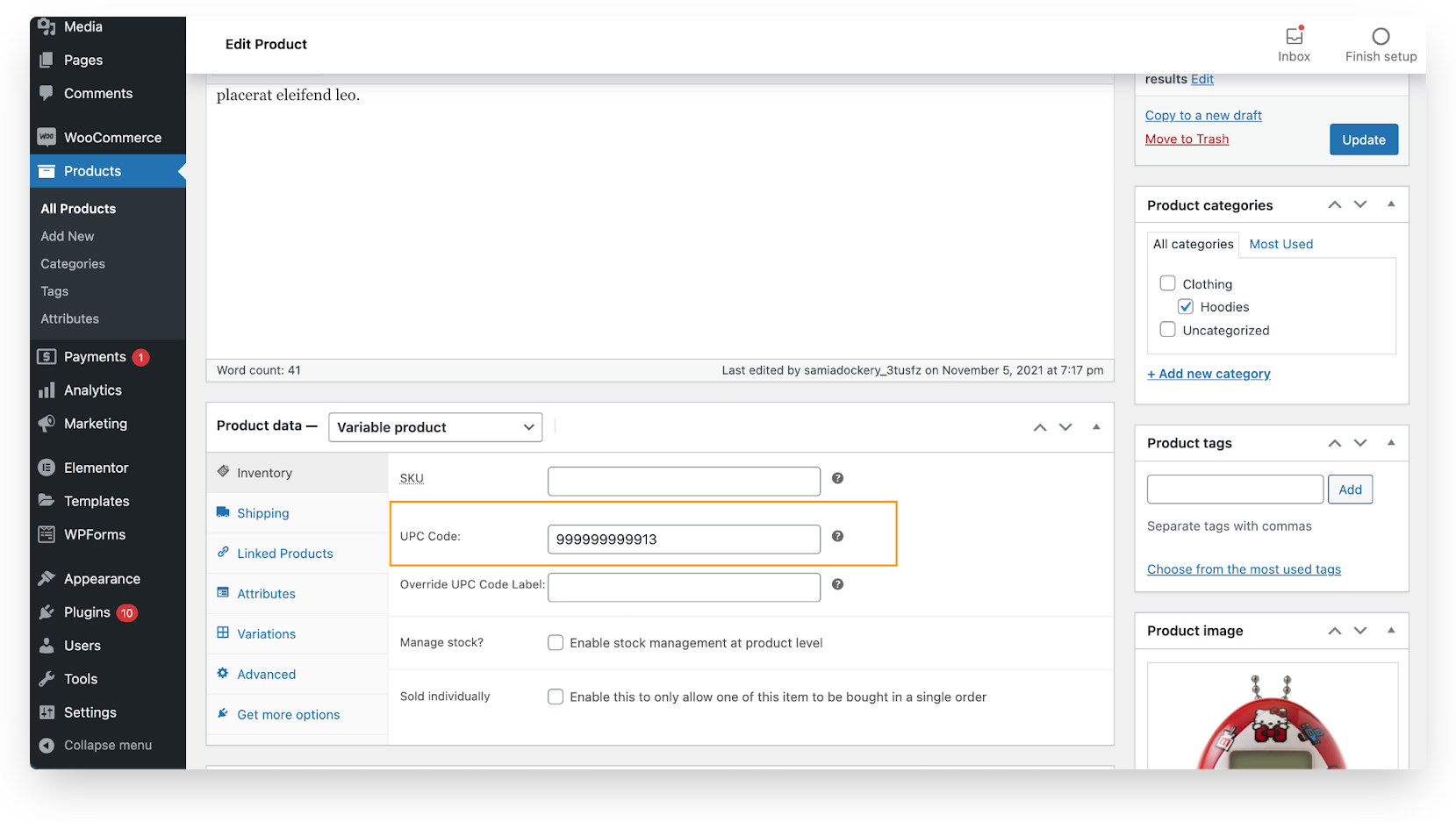
- Activate the Plugin. Now there is a field for UPC like the one below
- Ensure all products have a UPC before proceeding
Embed the Product Locator Code
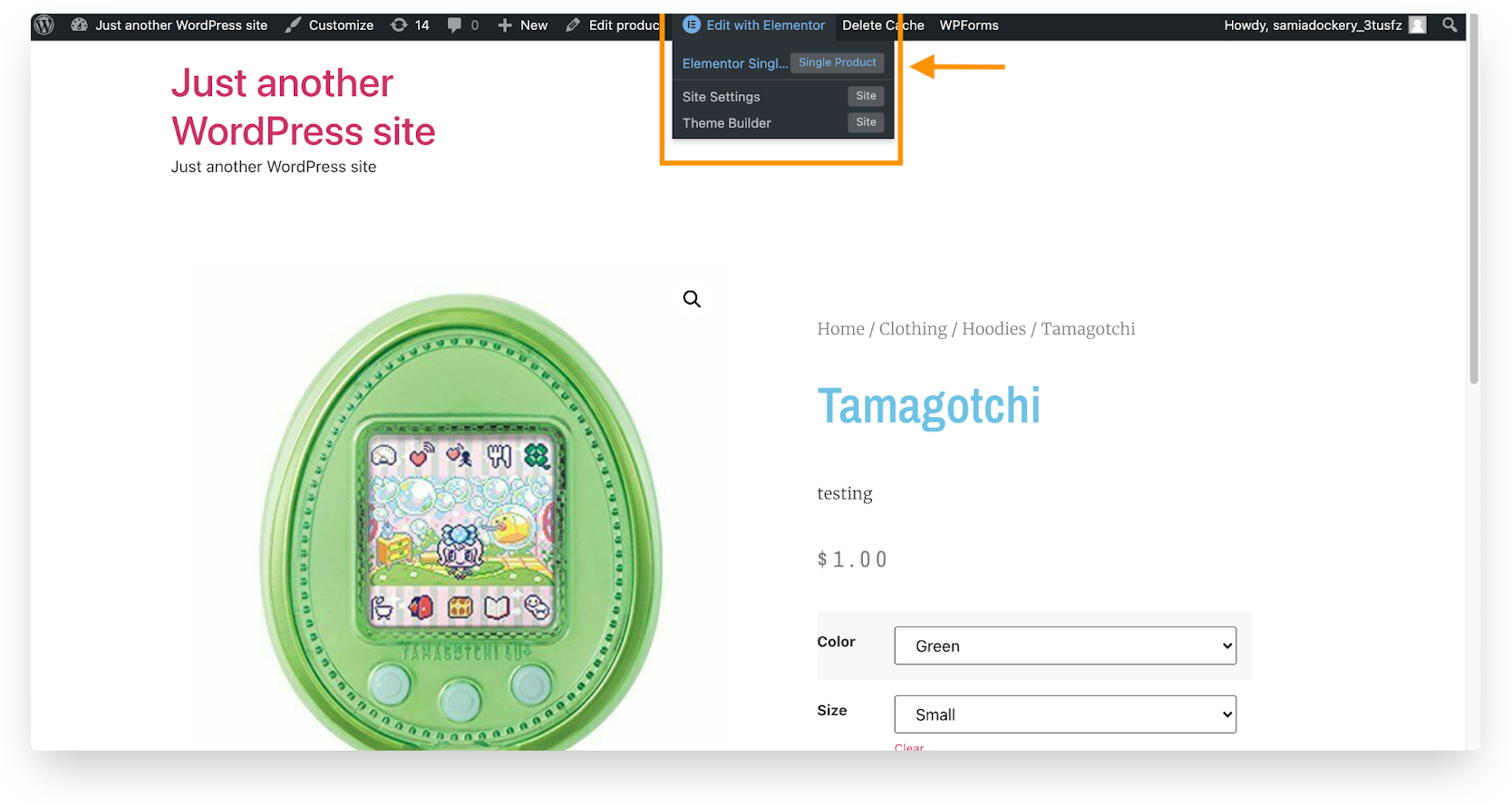
For embedding the code, you will need to be familiar with editing template pages in Wordpress or you can try a plugin, like Elementor. To edit a PDP, and add the Embed code with Elementor, go to any product page and then click edit with Elementor at the top of the screen. Select Elementor Single Product.
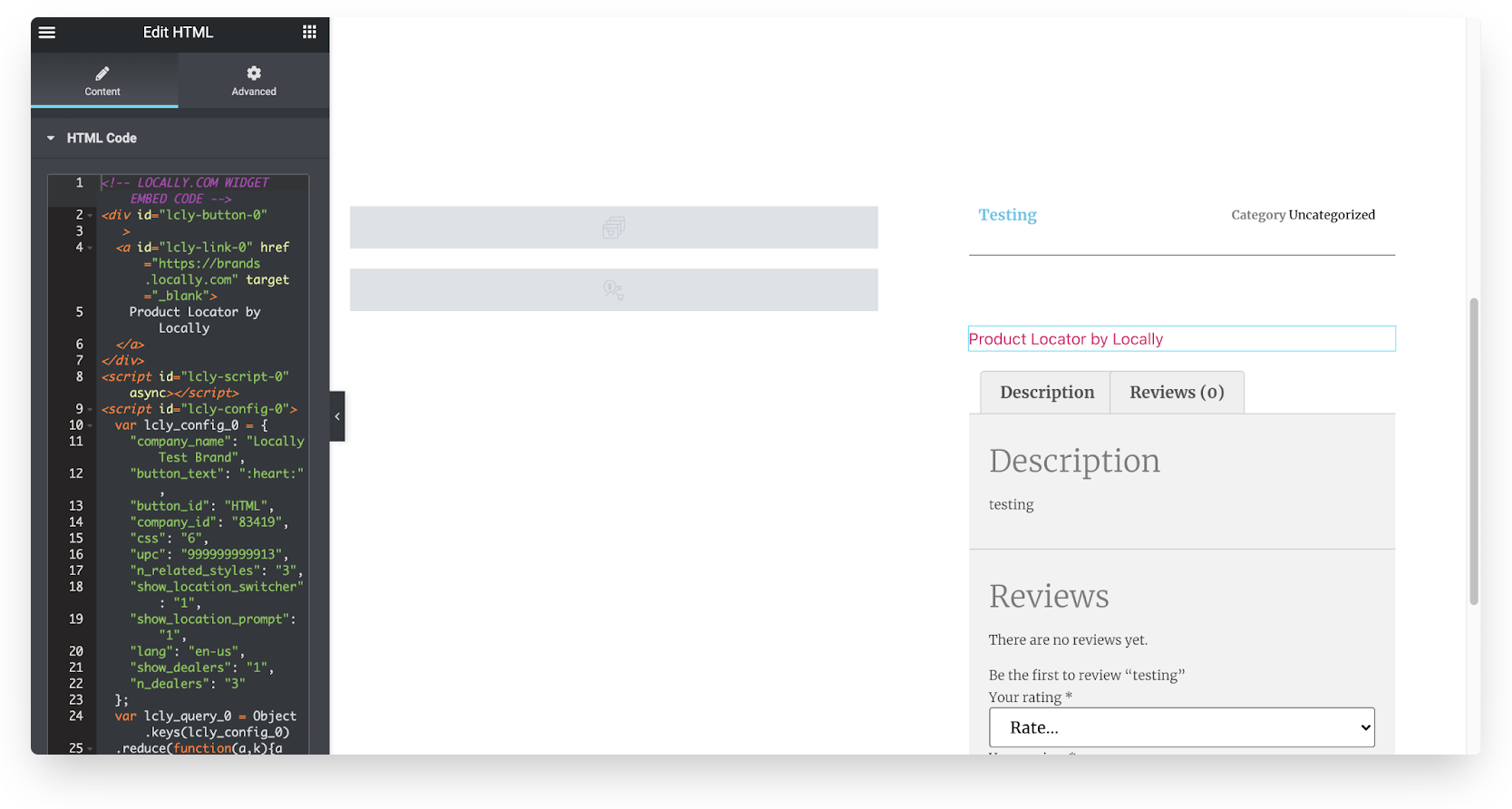
Select HTML and place a block for HTML where you would like to see the product locator. This is where you will paste your product locator embed code. Click update when complete.
Important Note: Completing Installation
To ensure installation is complete, you need to change one parameter in the code per PDP. The UPC (or Style) parameter will need to be changed per PDP, so you will need to write a script to call the UPC into the code.
The WooCommerce plugin uses the following post meta keys: hwp_product_gtin, and hwp_var_gtin
Updated 3 months ago