

Managing Station Users
How do I manage Locally account users?
Logging In
To log in, head to https://www.locally.com/station/login and sign in.
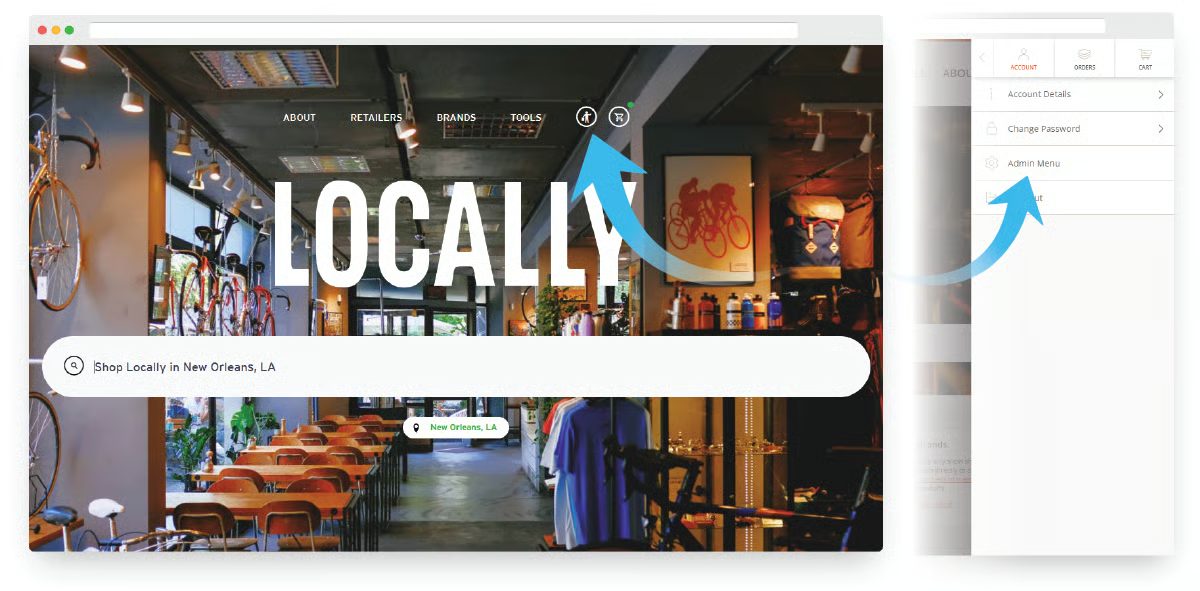
To navigate to the dashboard from the Locally.com home page, select the account icon at the top of the page, then Admin Menu from the left side panel as shown below.
Adding Users
In your Locally account, navigate to Administrative > Company Users to load your company's User Directory. At the top right, click the invite button.
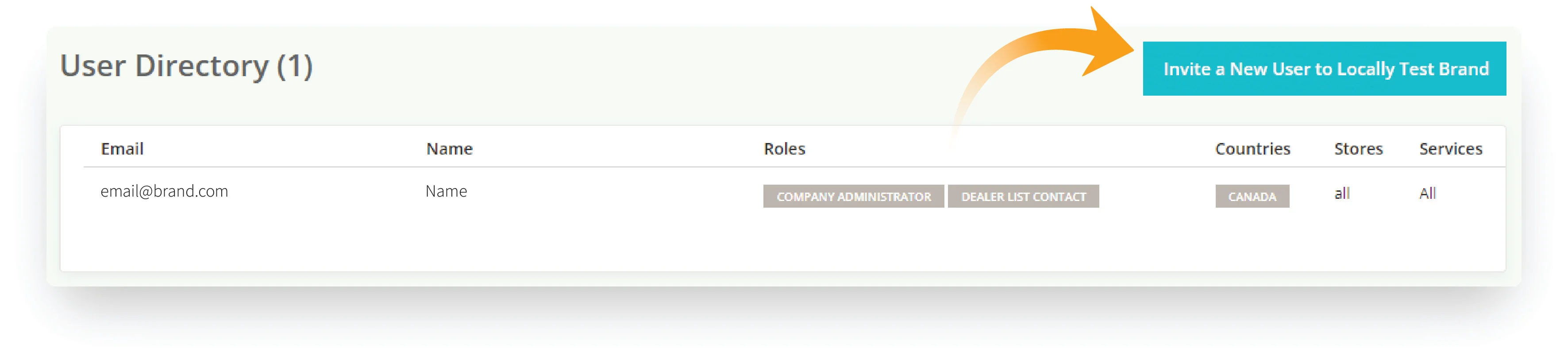
When inviting a new user, you have the option to assign specific roles and permissions. The invitee will receive an email with a link to set a password and login.
Assigning Specific Roles
You can provide specific users with varying levels of access to your account. They may be assigned more than one role.
Company Administrator:a user with this role can create and manage other user accounts. Assign this role to anyone who should have complete access to your account and be able to invite and manage other user's account access. If you are a company administrator but also want to receive inventory alerts or dealer list notifications, assign those roles to yourself.
Dealer List Contact:Users with this role will receive notifications when a retailer requests to be authorized for your brand via Locally's Brand Relationship Manager for Brands.
Inventory Alert Contact**:**Users with this role will receive stale feed alerts. If your brand has brand store's sending inventory, this is who will get an alerts.
Billing Contact**: I**f your brand is offering Buy It Locally transactions or any of Locally's add-on services for your brand stores, the billing contact will receive the monthly invoices and any billing-related emails. This does not include any standard billing.
Countries
You can restrict a user's access level by country. This will restrict both the brand relationship request emails and access to the dealer list in station.
Stores
This will restrict a user to only see the specific brand store info.
Services
If you choose one or more, then the user will only be allowed to access those panels. For example: you might want a store manager to be able to manage their own store's profile and events, but not access settings that power your website's tools.
Revoking User Access
Anyone with the Company Account Owner or Company Administrator roles can revoke access. Click on the user that you'd like to block. Check the access is revoked indefinitely box.
Reset Password
If you ever need to reset your password, go to this link : https://www.locally.com/?show_dashboard=password
Updated 3 months ago