

Designing & Installing the Store Locator
How do we design and install the store locator?
Design
The store locator is embedded on the brand site in an iframe. The store locator's styling is not inherited from the brand site, so it needs to be styled to match.
Locally's onboarding specialist will do a first pass based on the brand website and any provided style guide. Ask for tweaks at any time in the process. Below are the choices if the brand's design team wants to be involved.
Map Texture
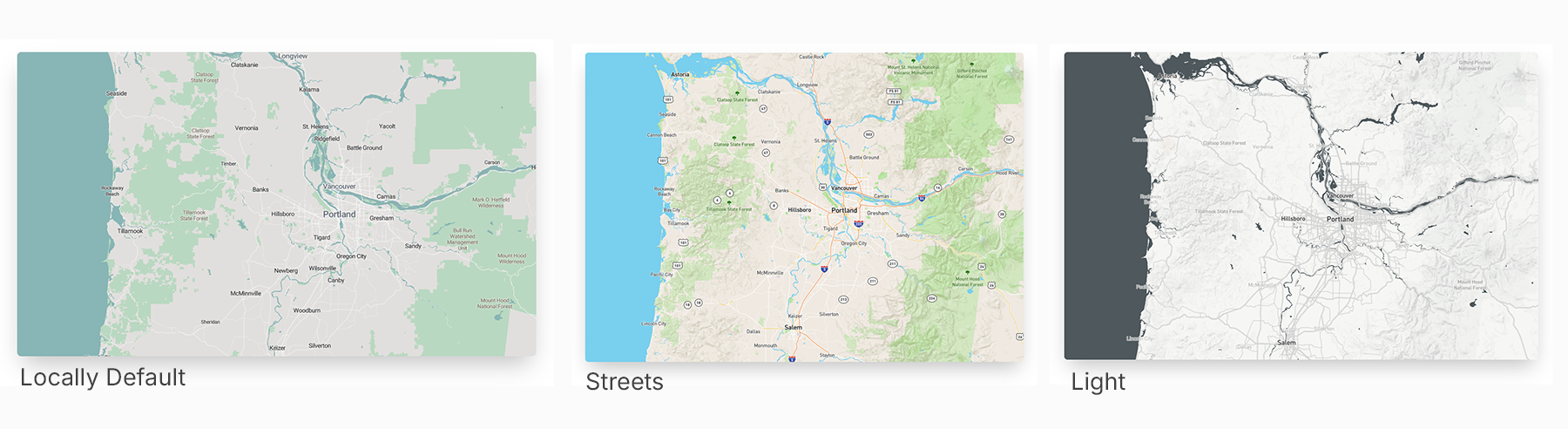
The store locator can have a custom background. Go to Mapbox Studio and design a custom tile and share it with our onboarding specialist.
Map Pins
Map pins have 3 states: default, stocking dealer, and rollover. Shops get upgraded to the stocking pin (we recommend using a brighter pin) when they upload inventory. We make either a brand color set or a logo set.
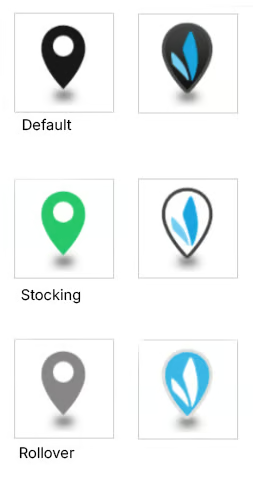
Your design team can design your own pin. We need the 3 states as separate files. Our default size is 75 x 100 pixels or 100 x 100 pixels. File type is PNG with a transparent background.
Accent Color
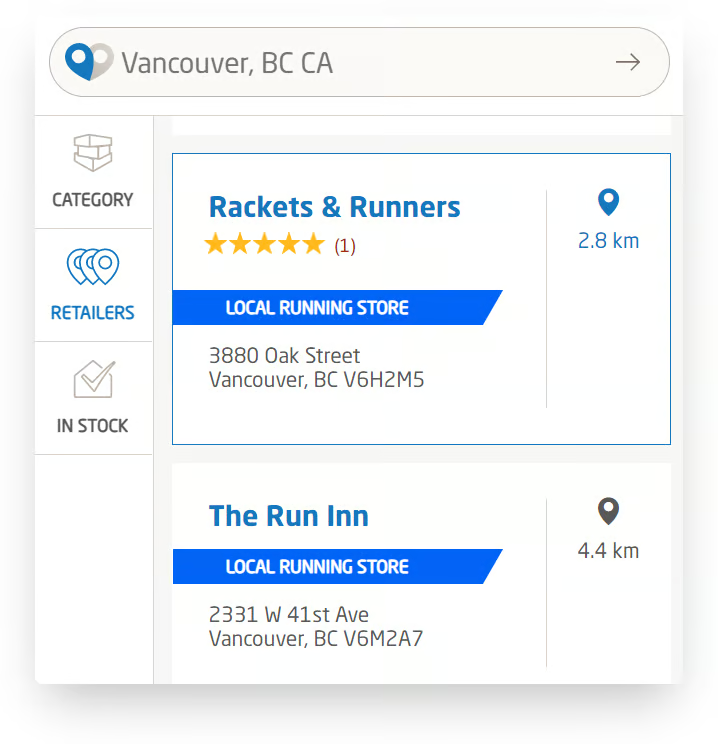
The accent color will be used for the border, to highlight the active Store Locator choice, and for the left sidebar options. We will use a brand color. If you'd like to send us an exact color, send the designated hex color.
Fonts
We can install 2 fonts per brand. The store name can be styled with a designated font and made proper or uppercase. The address information can be styled separately. If the brand uses fonts that aren't free, like Google Fonts, please send us the font files.
Categories
Review all Dealer List Category Visualizations to see if you'd like to start with categories enabled. They can be added for free at any point.
Installation
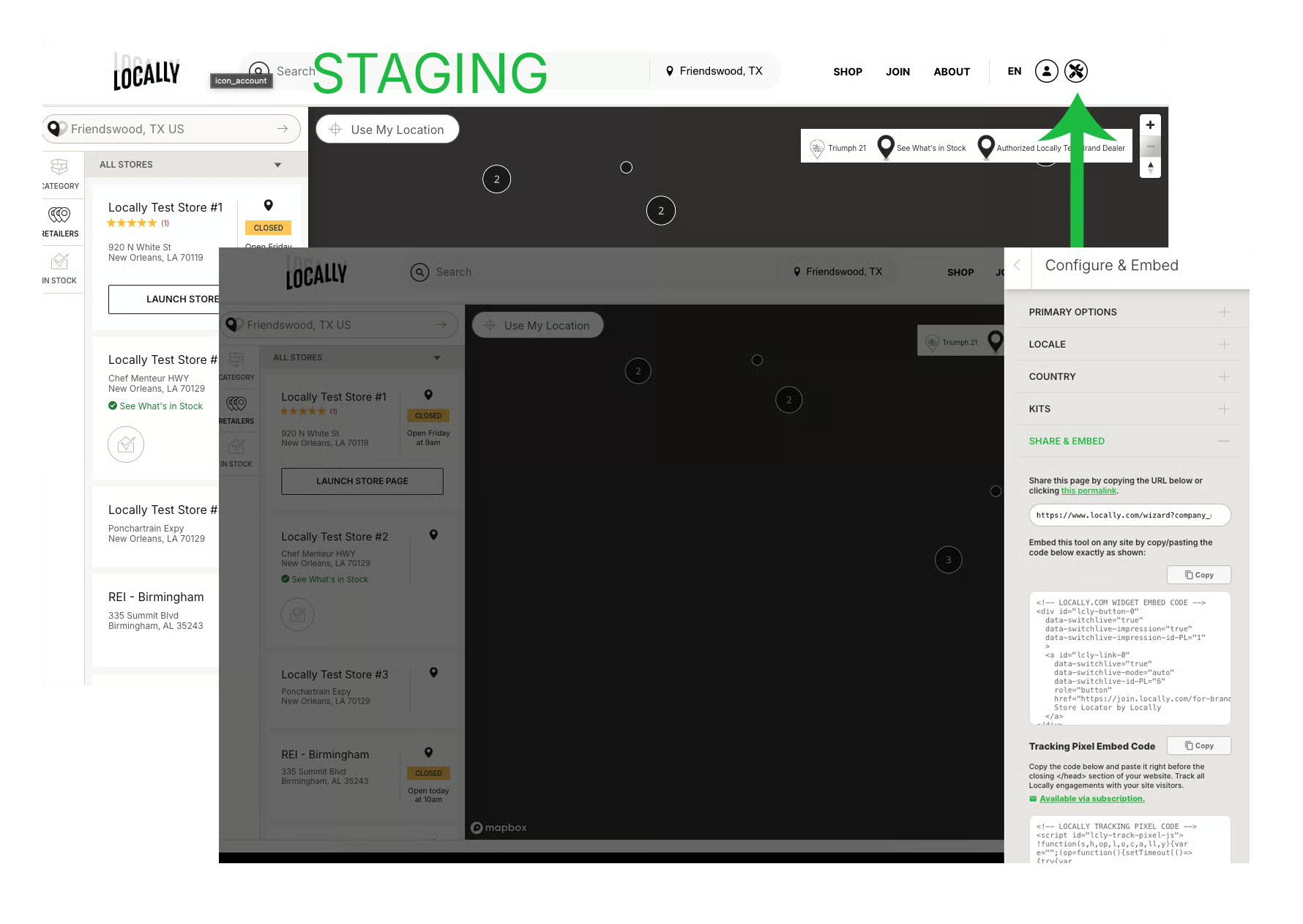
You will receive a link to your store locator wizard similar to our test wizard, but with the embed code unique to your integration. The top and bottom of this page are for staging only.
Click the blue tools icon to open the wizard and scroll down to Share & Embed. Copy and paste the embed code into the store/dealer locator page.
Extra Options
White Label
If you require no Locally branding on your tools, we offer an upgrade option to remove. Here are more details: White Label
Embed a subset map with one categoryTo embed a pre-filtered Store Locator, install the standard embed code with the additional category parameter added. The category can be added to the wizard under "Default Category," or you can add the code manually.
For one category use "category": "category1" or for multiple use "category": "category1 OR category2",
Categories are case-sensitive.
Embed different languages
To embed a different language than the one we sent, select your new language under "Locale."
Embed with a different zoom level
Add the following parameter to the store locator embed code to adjust the starting zoom level:
"zoom": "X",Replace X with the zoom level value. The default zoom level is 11. A higher value will zoom in (maximum of 16); a lower value will zoom out. We recommend using only a slight adjustment (9-10 or 12-13).
Start at specific location
Add this line of code
"jump_to": "10036"OR
"jump_to": "New York City NY"Updated 3 months ago