

Manage Your Brand Stores
How do I add and maintain brand stores?
For onboarding, please send us a list of all your brand stores, so we can save you time. These instuctions are for adding a store or two as they open.
Create The Store Login to your Locally dashboard, navigate to Stores & Dealers > Your Locations. In the top right, select Create a New Store.
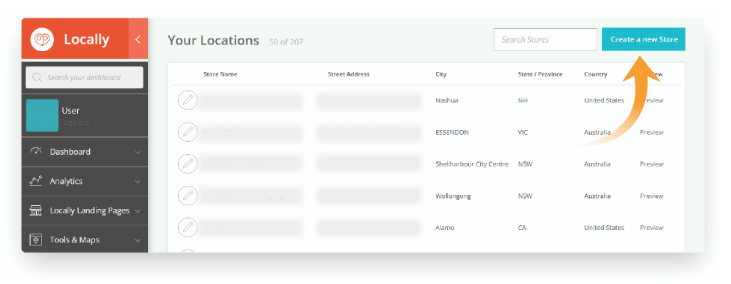
Fill out required fields and save. If the store is opening in the near future, we suggest making the store name "Brand Store - opening Sept 13" so that shoppers know it isn't open yet.
Add store to Dealer List
On your admin menu, navigate to Stores & Dealers > Manage your Dealer List.
At the top right, click "Add New Dealers." Search our database by name, city, or postal code for the store you just added.
Most brands have a special category for their own stores, so add appropriate tags at this time. They are usually "brandstore" or similar.
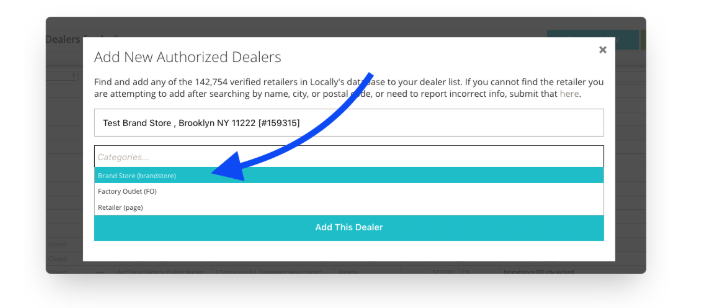
If your dealer list is on auto-sync, you either need to send this store info from your dealer database going forward or "lock" the store from being removed on the next sync by adding the tag lcly-locked.
If you are using Locally Landing Pages (LLPs), you can now add blocks and customize the pages.
Updated about 2 months ago