

Create Cart Shopping Links
How do I direct shoppers to nearby dealers with product?
Specific Store and Product
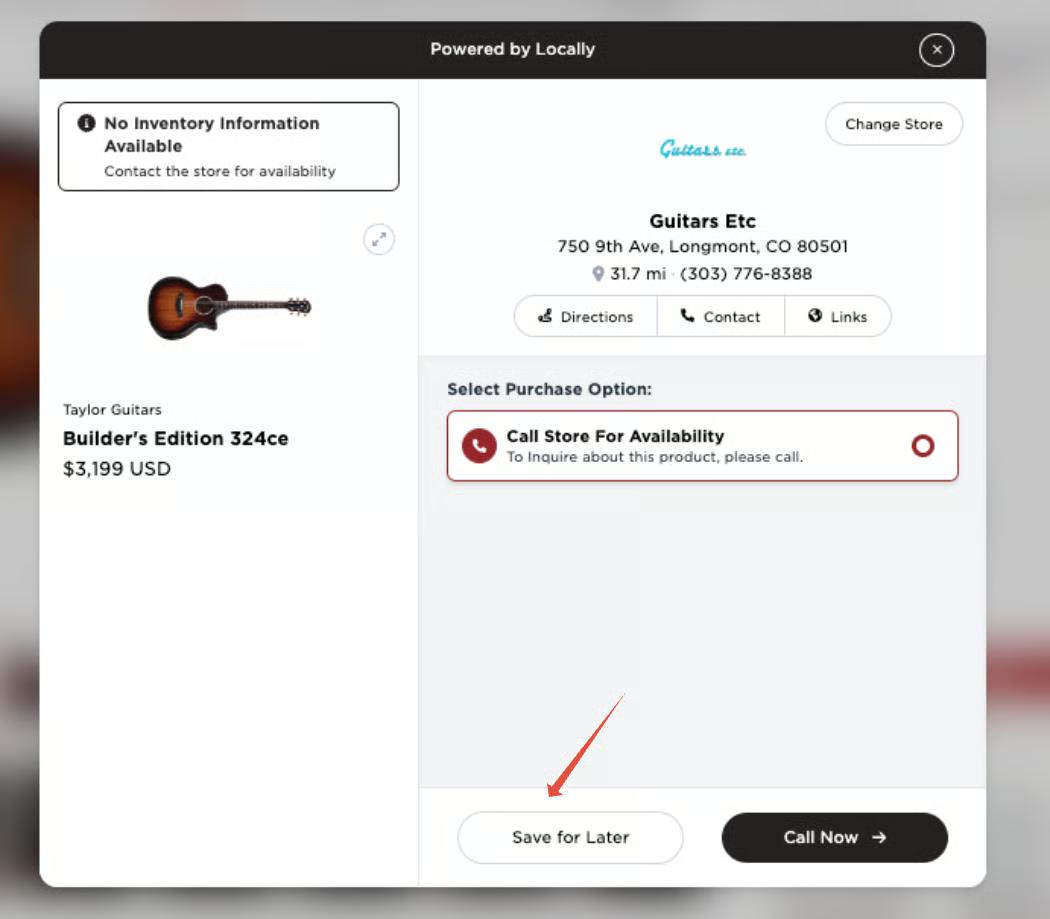
- Open the Product Locator modal on the product page you want to send.
- Select the store.
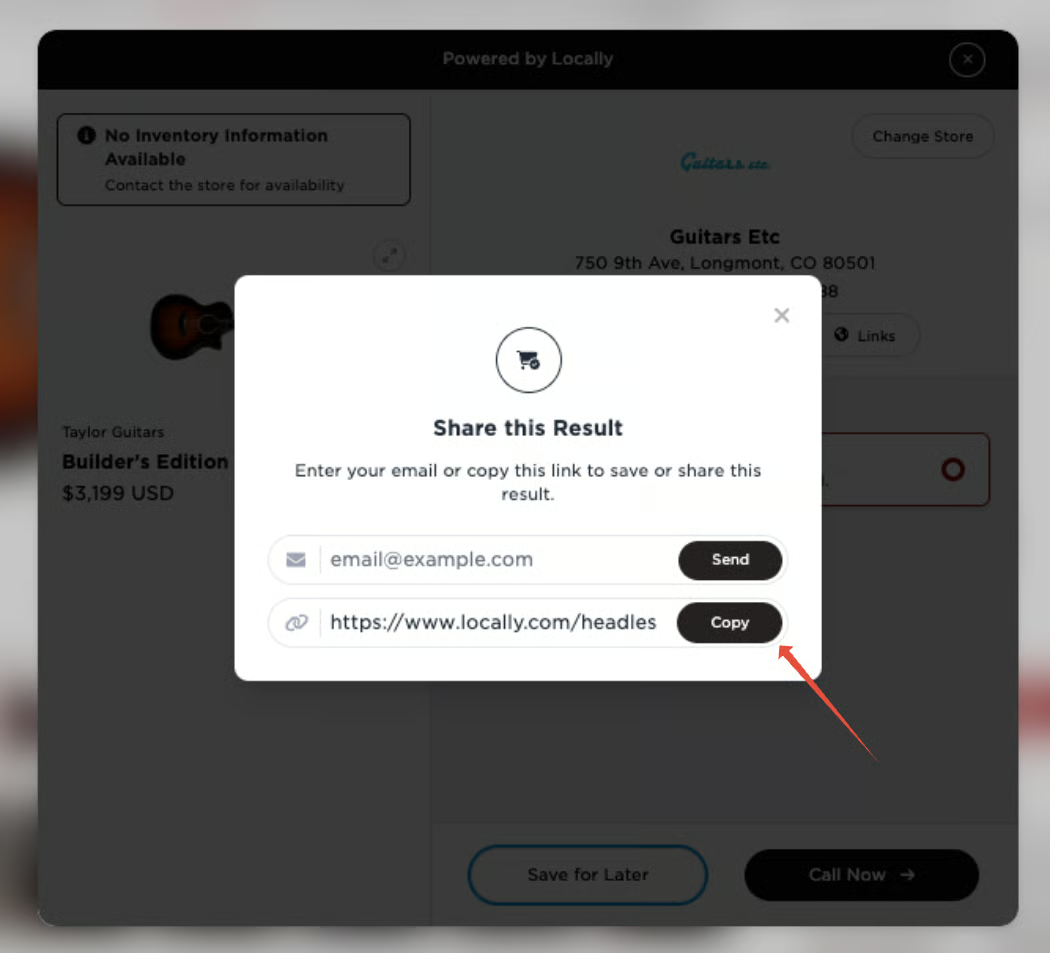
- Click save for later and copy the link. This link will direct you back to the exact view of the product locator for this store.
Several Stores and One Product
Follow the steps above.
Once you have the link from the Product Locator modal, remove the store ID parameter from the URL. Remove the &__lcly_sfl_store_id=____ parameter — the store-ID portion of this URL:
https://www.locally.com/headless/sfl/url/redirect?__lcly_sfl_store_id=285141&__lcly_sfl_product_id=ABC123&__lcly_sfl_upc=123456789101&__lcly_sfl_style=ABC12345&__lcly_sfl_redirect_url=https://www.yourbrandsite.com/productpage
Build the Link From Scratch
Here is the template link:
https://www.locally.com/headless/sfl/url/redirect?__lcly_sfl_store_id=285141&__lcly_sfl_product_id=ABC123&__lcly_sfl_upc=123456789101&__lcly_sfl_style=ABC12345&__lcly_sfl_redirect_url=https://www.yourbrandsite.com/productpage
- Enter the Store ID where it says
__lcly_sfl_store_id=285141. If you do not want the store-specific link, remove__lcly_sfl_store_id=285141&from the URL. - Enter the product ID where it says
__lcly_sfl_product_id=ABC123 - Enter the UPC where it says
__lcly_sfl_upc=123456789101 - Enter the style number where it says
__lcly_sfl_style=ABC12345 - Enter the URL you want the modal to load where you see
__lcly_sfl_redirect_url=https://www.yourbrandsite.com/productpage
Set Location with the location URL Parameter
location URL ParameterYou can set a shopper's location on any locally.com storefront page by adding a location parameter to the URL. This is useful for sharing links that open directly to localized inventory views.
Accepted formats:
?location=City,ST— for example,?location=Austin,TX?location=ZIP— for example,?location=78701
One-shot (stateless) behavior: By default, the location parameter sets the location for that single page view only. It does not persist — refreshing without the parameter or navigating elsewhere reverts to the shopper's existing location. This makes it ideal for one-shot localized inventory views, such as links shared for a specific market.
Session-level override behavior: This behavior is being finalized and will be documented here once confirmed. Once available, a session-level option will allow the location parameter to override the shopper's location for the remainder of their browsing session, rather than for a single page view.
Example:
https://www.locally.com/store/yourbrand?location=Austin,TX
Updated 2 months ago