

Epicor Eagle
How do I connect my inventory with Epicor Eagle?
- Create a query in Compass that contains the required inventory data fields (UPC code, Quantity Available, Price).
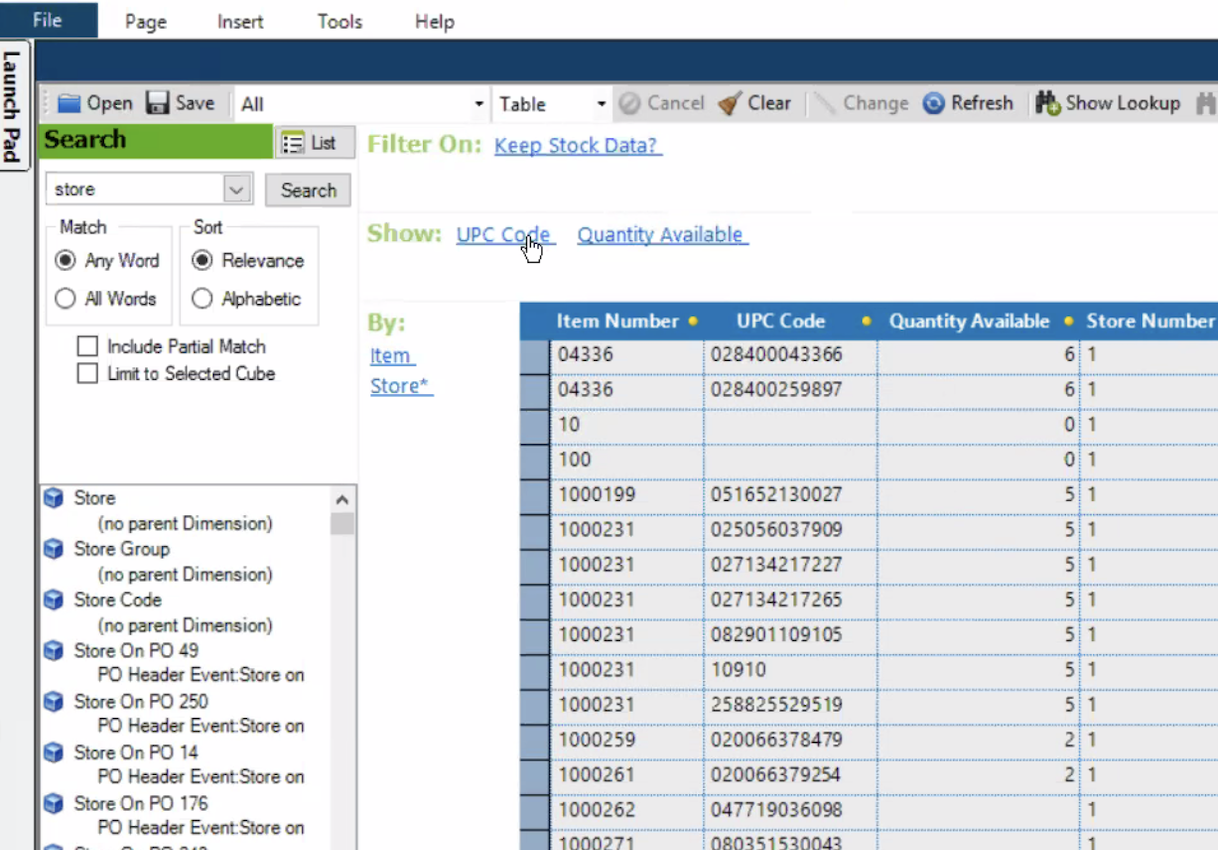
- Create a schedule for automated uploads. Our system can support uploads as frequently as once per hour, and we recommend updating at least once per day.
- To do this, select Tools from the menu bar, and click on the Schedule button.
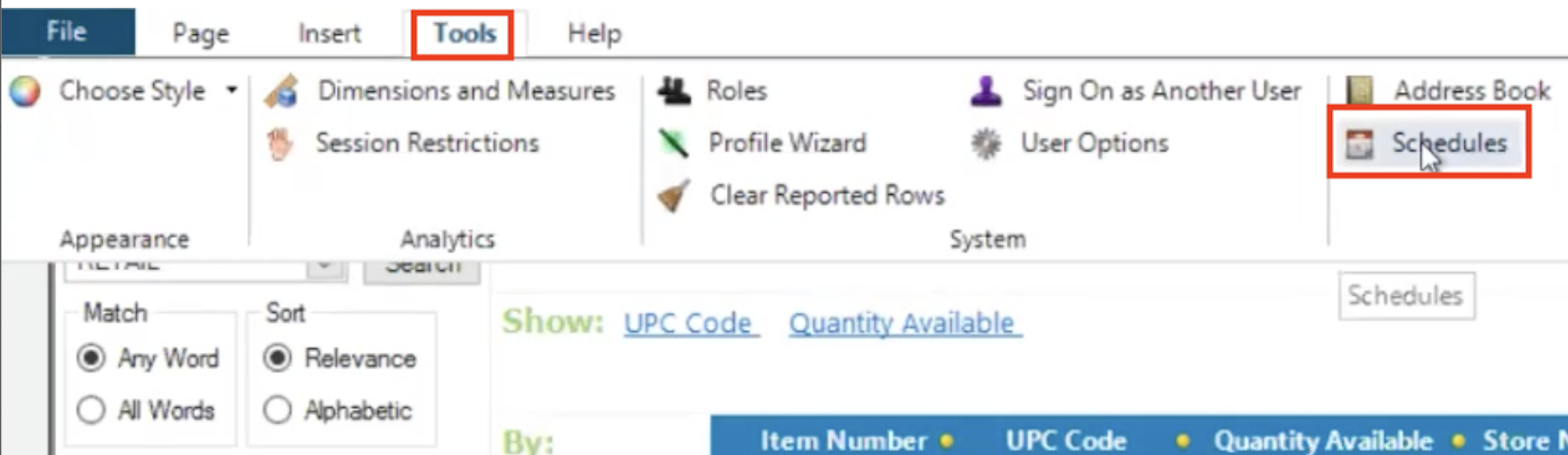
- When the Schedule Maintenance box opens, click the Open button at the bottom of the box.
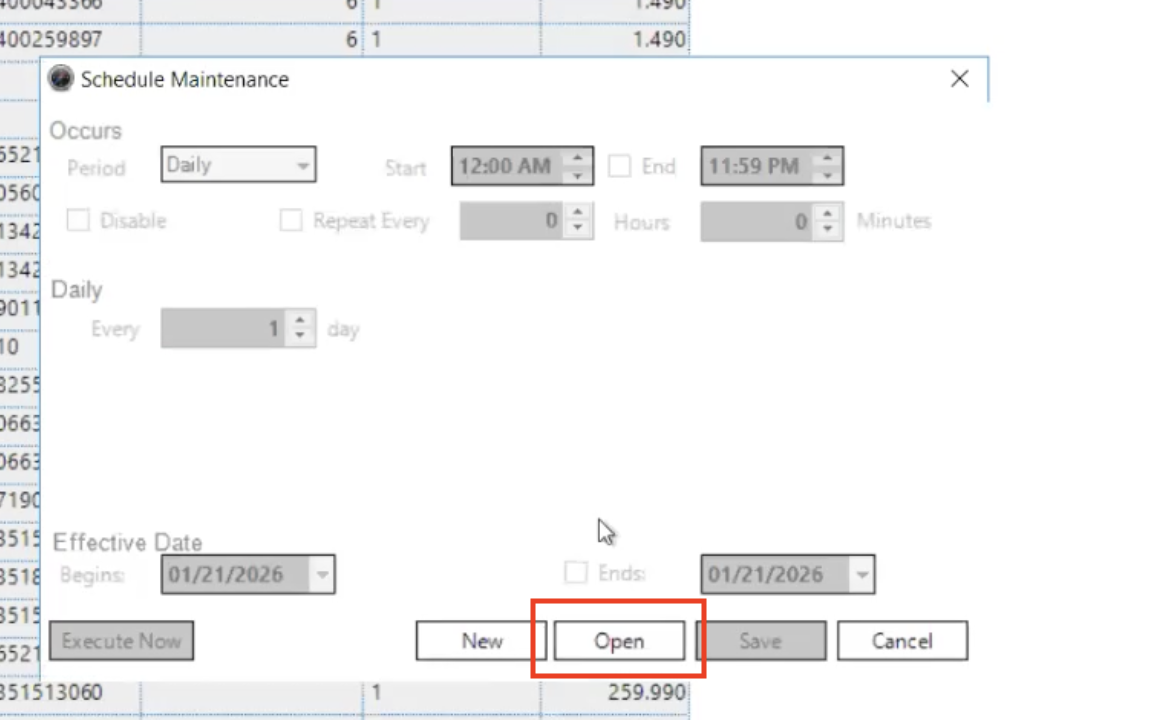
- Select the feed data you wish to schedule.
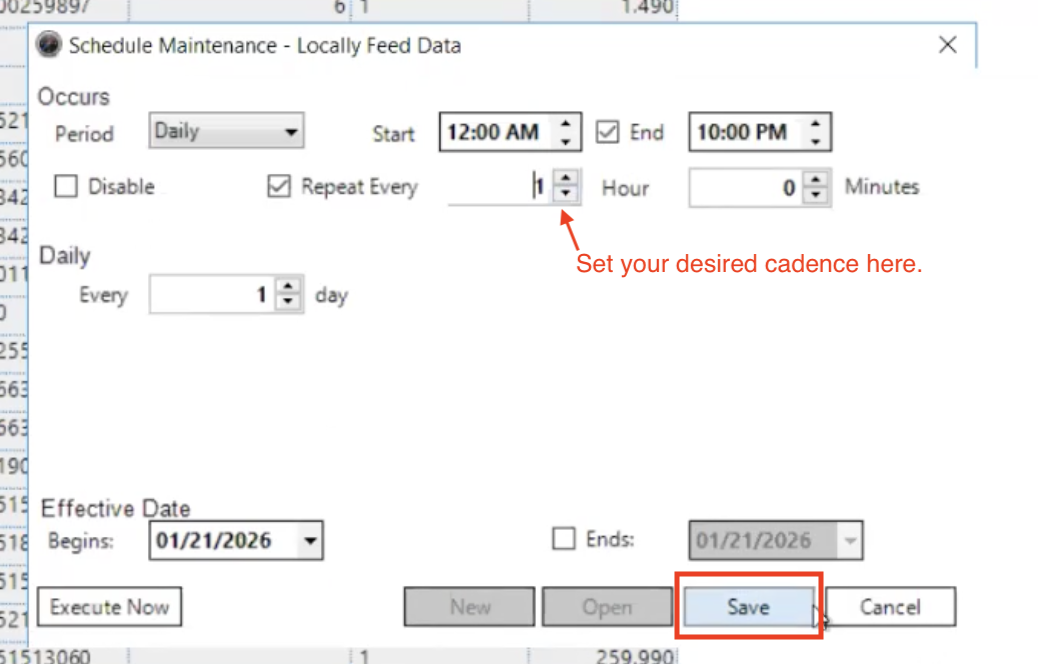
- Then, schedule your feed at your desired cadence and click Save.
- Next, you'll need to transmit the file via SFTP. You can generate your Locally SFTP credentials here: https://www.locally.com/station/panel/credentials/index.
- To do this, create a task using the Task Wizard that runs the query using the schedule you created.
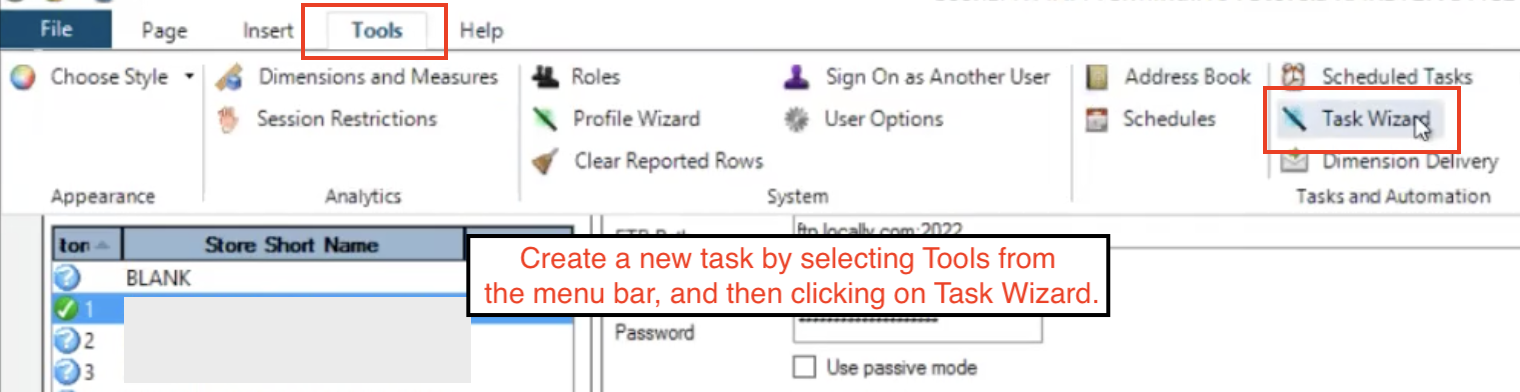
- Select Tools from the menu bar, and then click on Task Wizard, shown below:
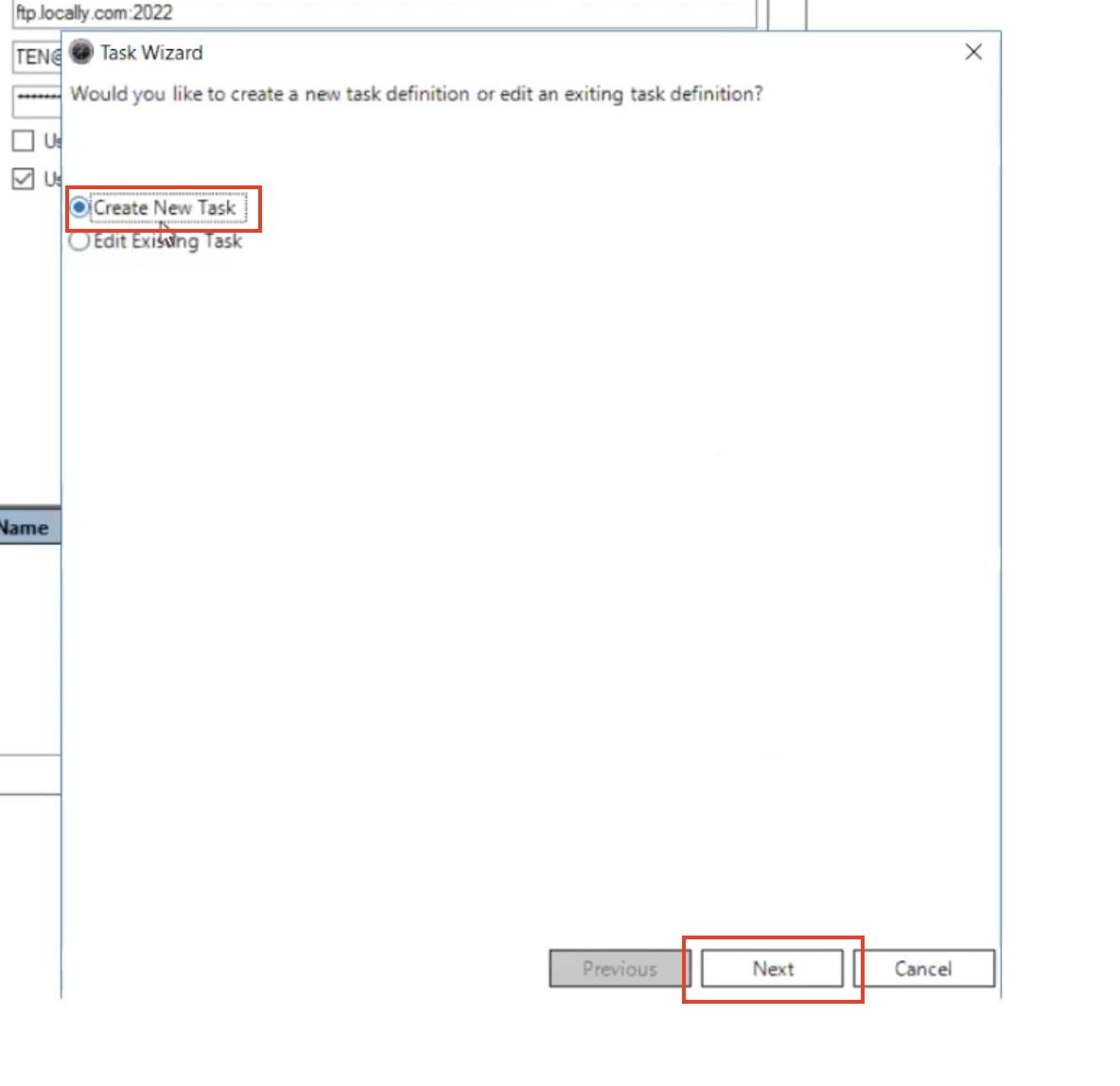
- Select Create a New Task, then click Next.
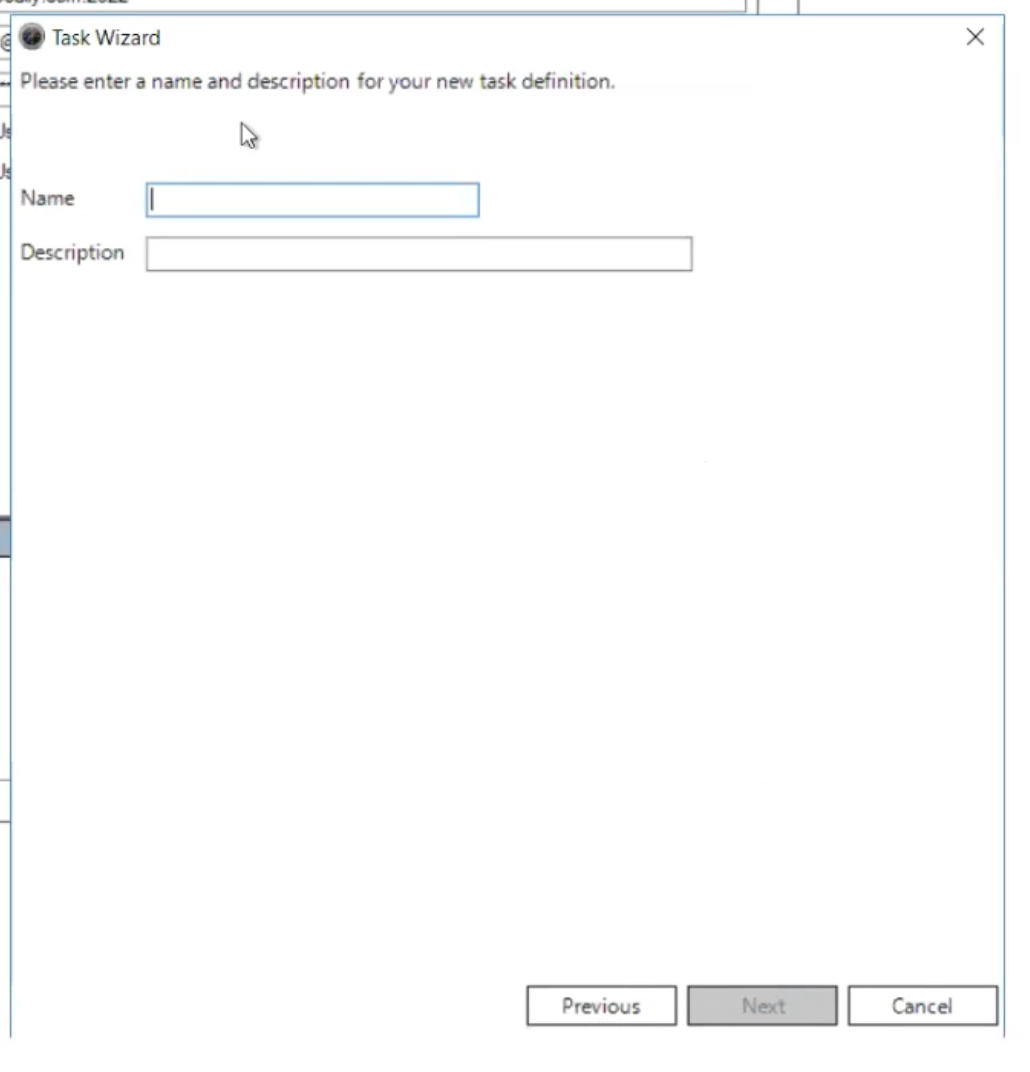
- You can choose any name and description in the next step (shown below), but we recommend using something that you can easily identify. Then, click Next.
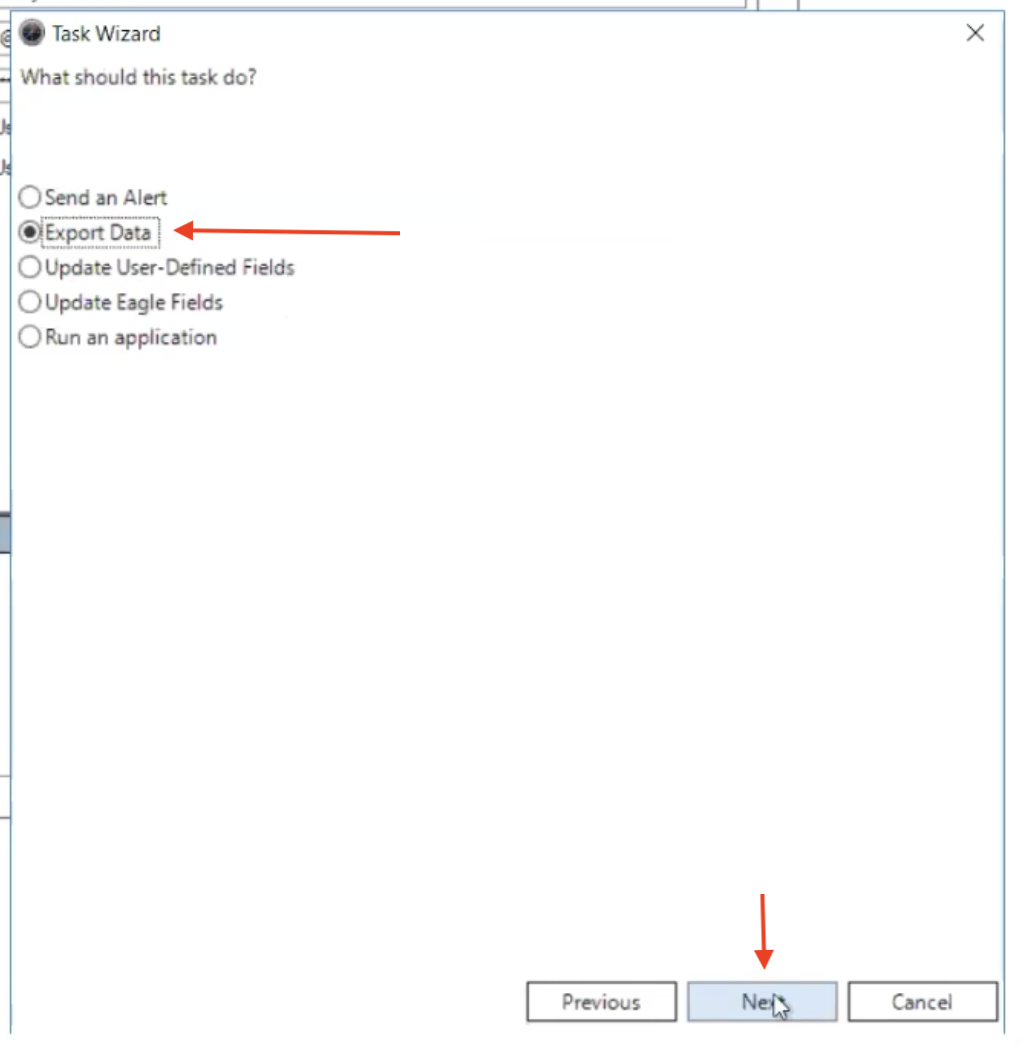
- Select Export Data (shown below), then click Next.
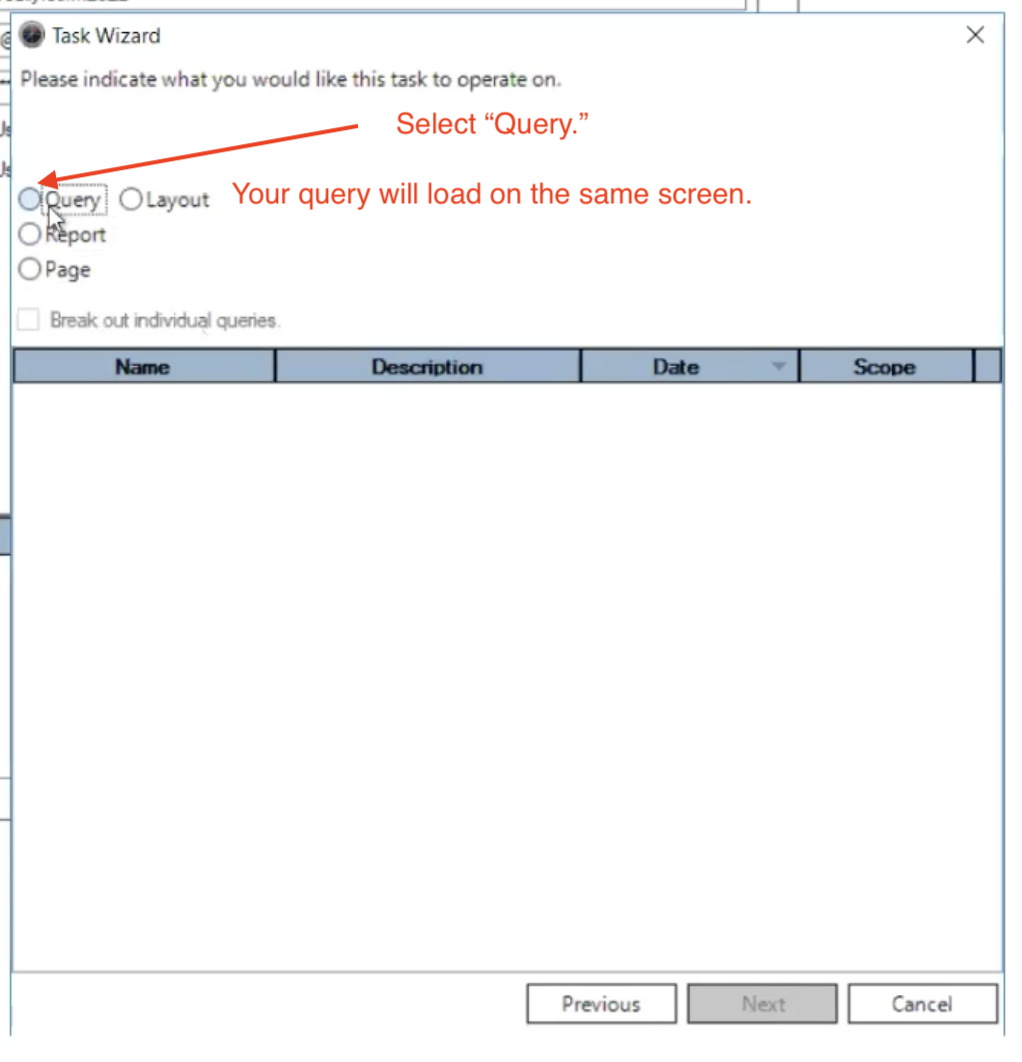
- Select Query.
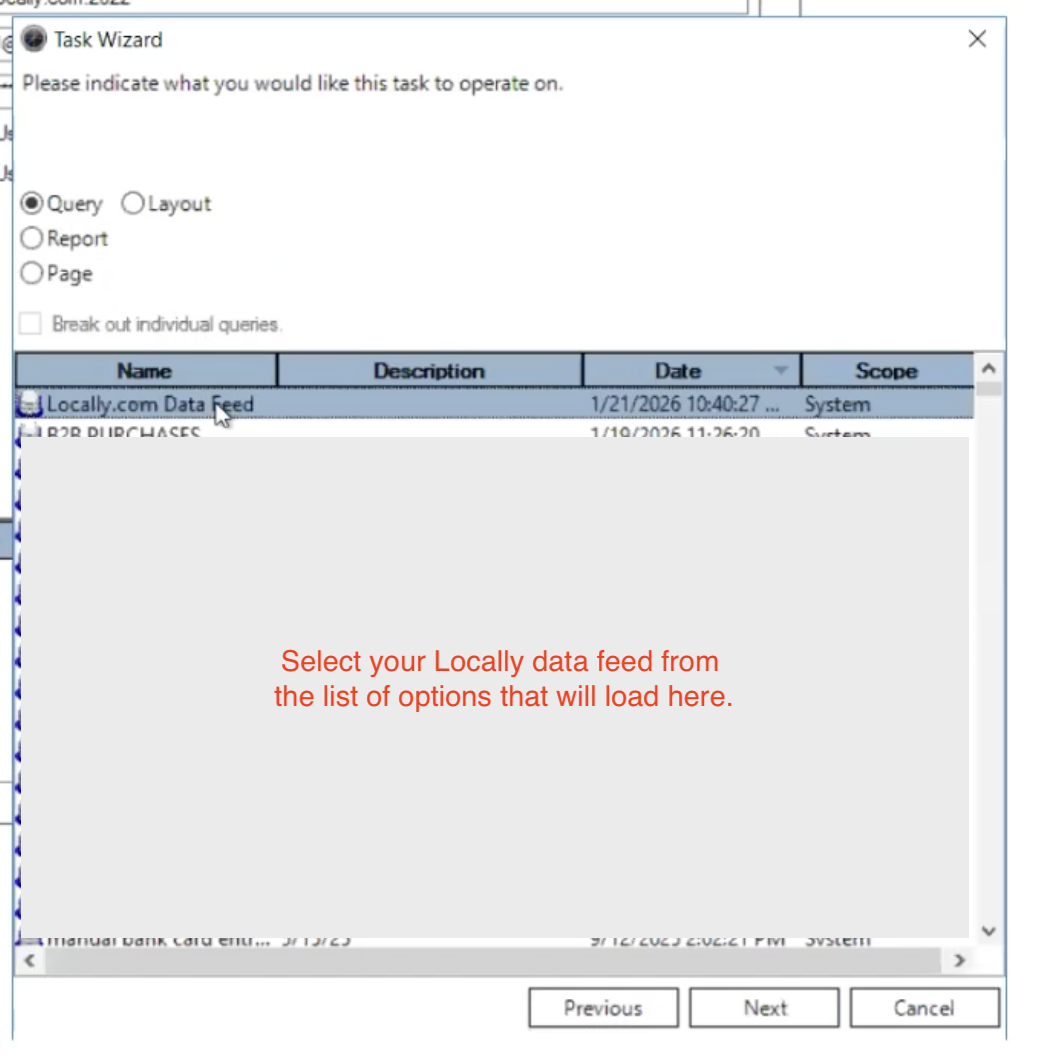
- A list of queries will load. Select your Locally data feed from the list, then click Next.
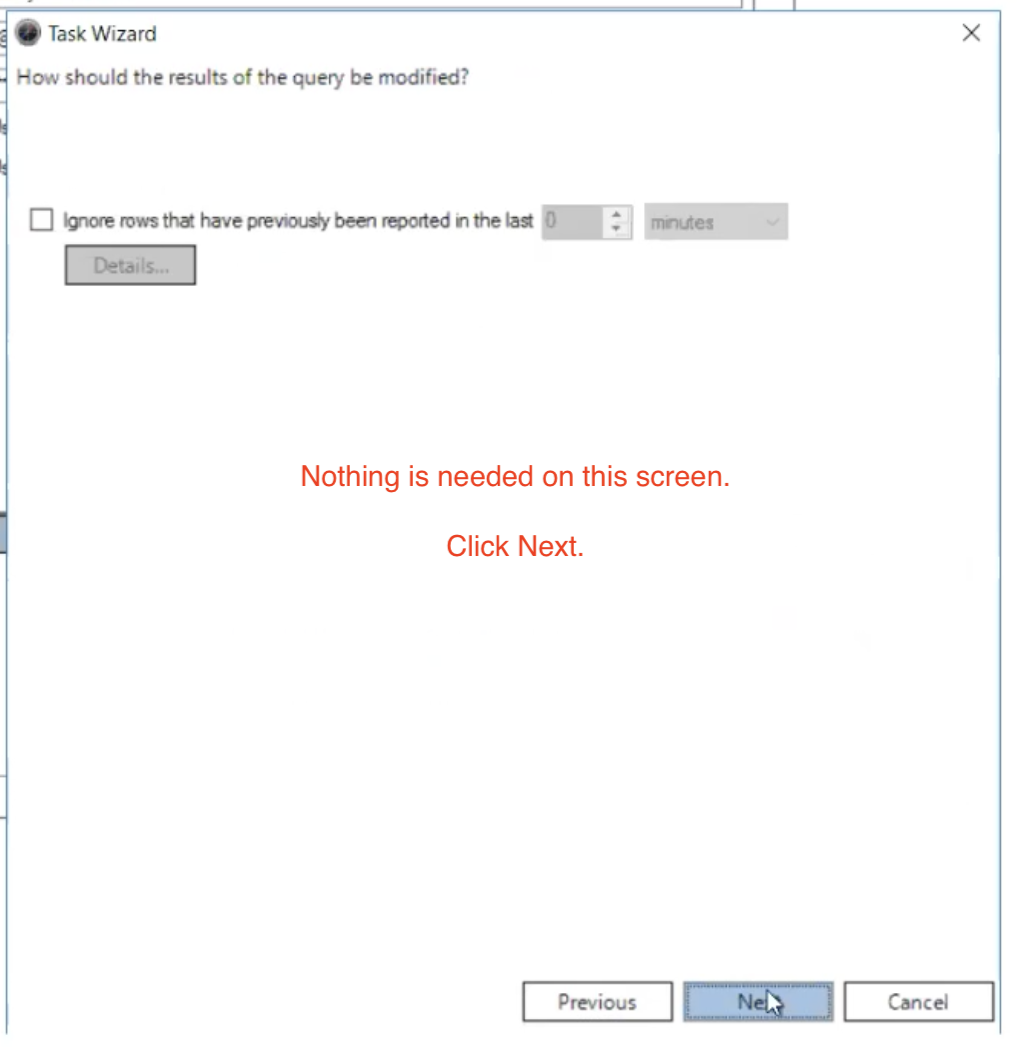
- If you are presented with the screen below, you can ignore all the options and click Next.
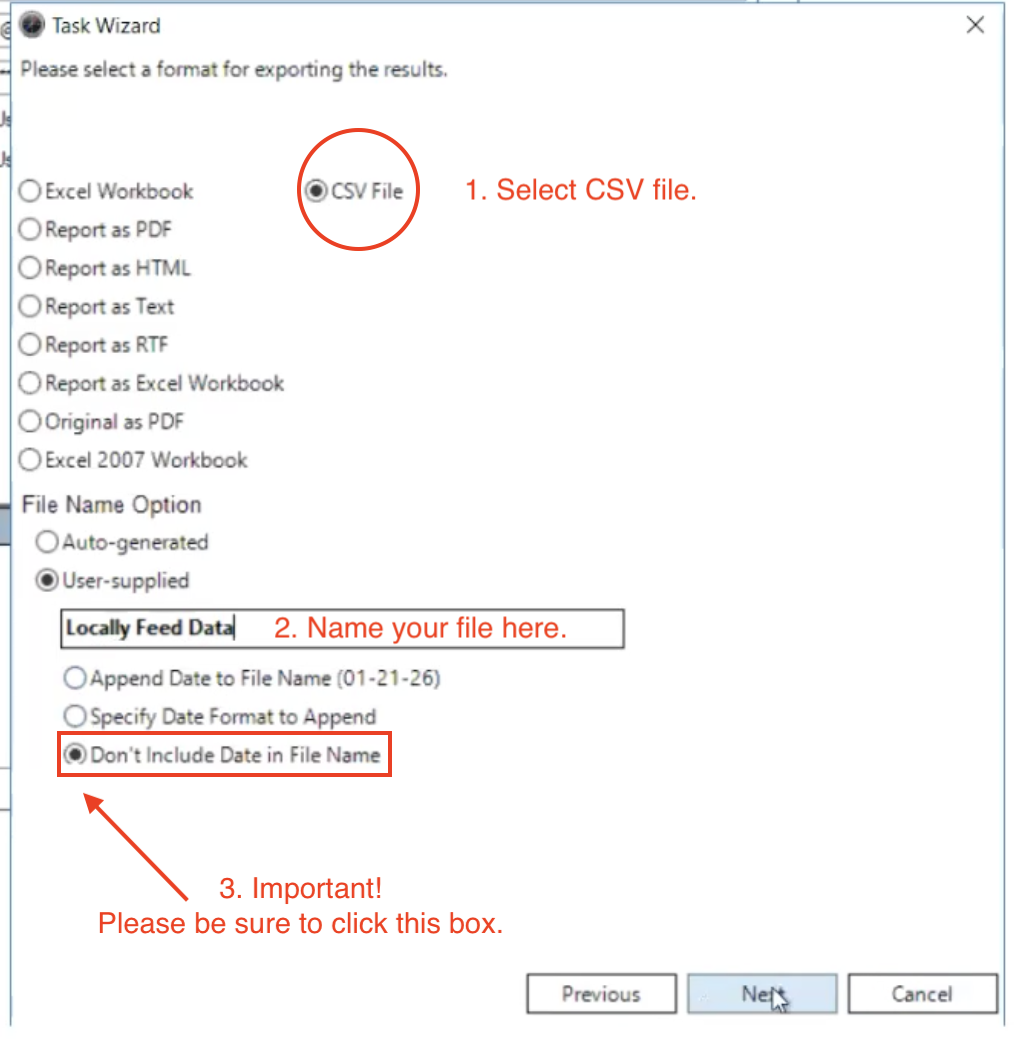
- Select CSV file, rename your file, and be sure to click "Don't include date in file name." Then, click Next.
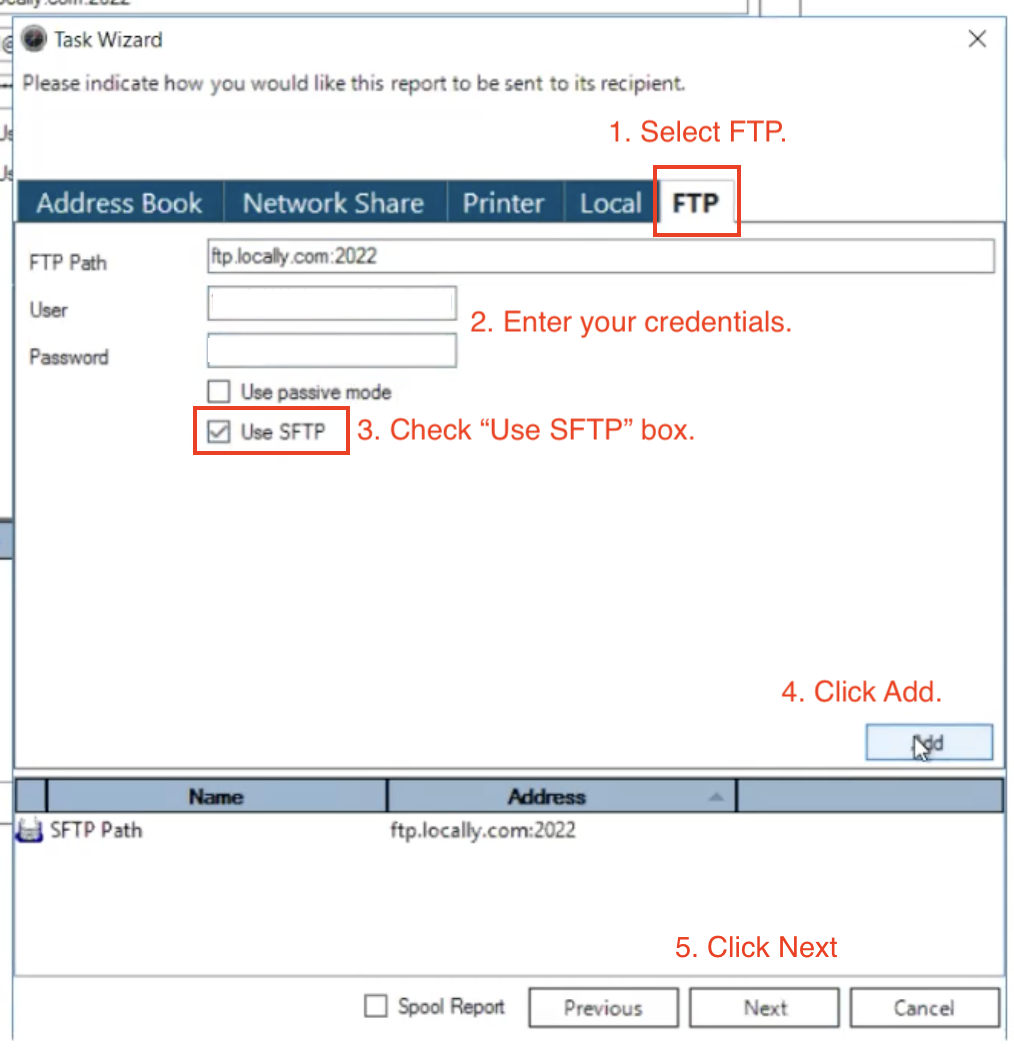
- On the next screen, select the FTP tab. This is where you will be asked to enter your credentials.
- The next screen should populate with the following information.
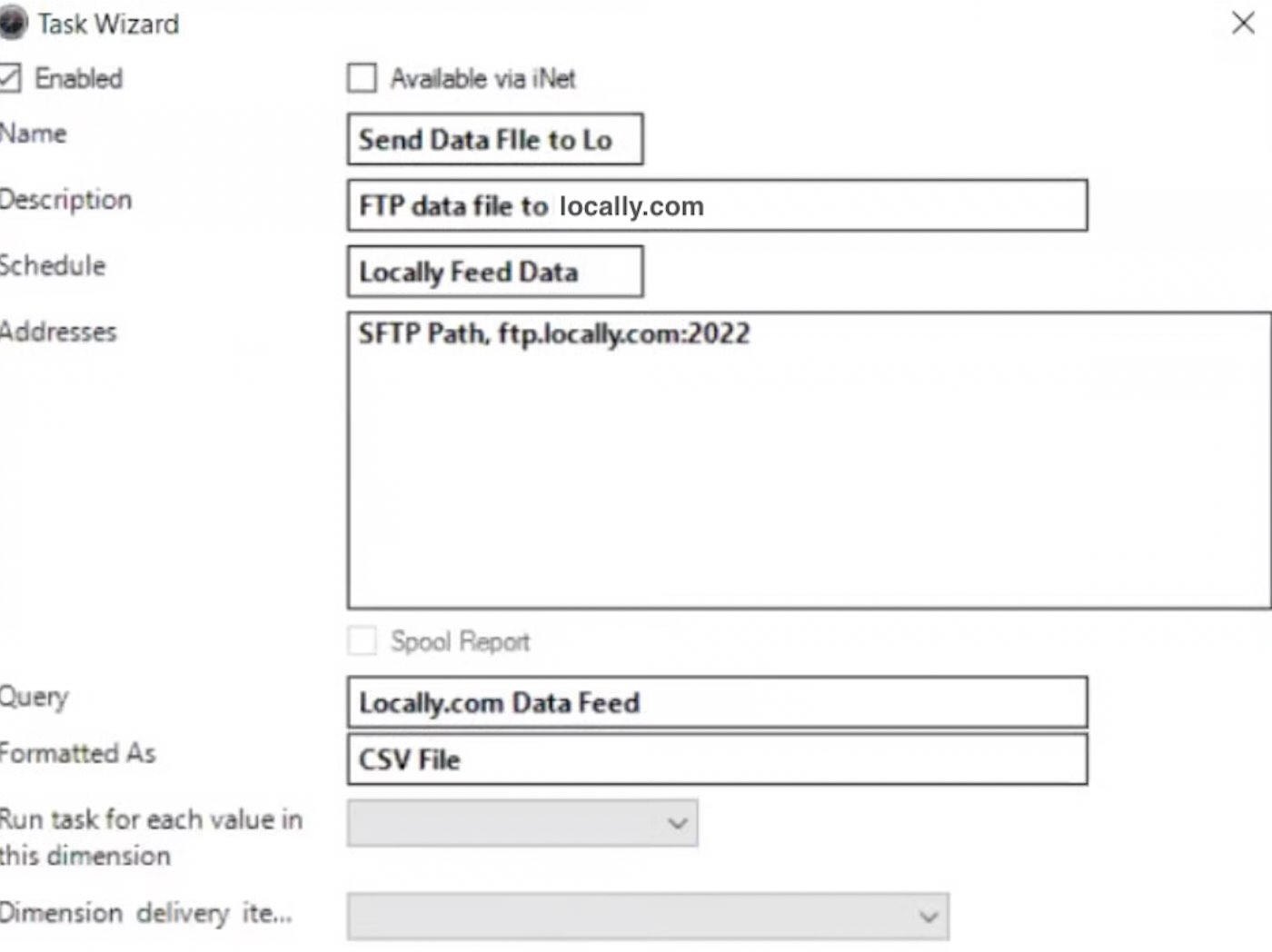
- The Addresses box should show FTP Path, ftp.locally.com:2022, which means it will be sent via the SFTP credentials entered earlier. It can also be sent via email to your assigned locally.com email address-- email [email protected] for more information).
- Click Finish.
- Email [email protected] when you're done so that we can complete the setup on our end!
Updated 3 months ago
Did this page help you?