

Imagine Retail
How do I connect my inventory with Imagine Retail?
- Generate SFTP credentials in your Locally account here.
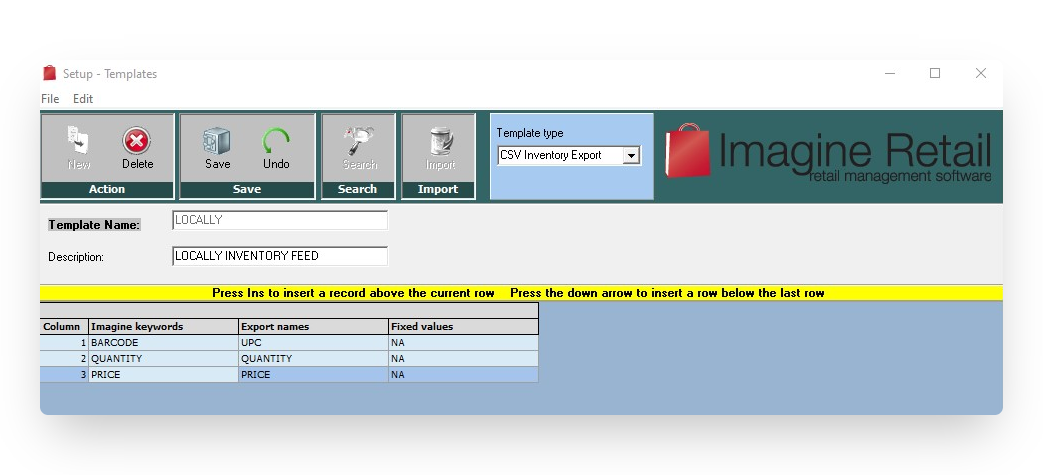
- In Imagine: use Setup ? Templates
- Create one new shopping cart export template for CSV Inventory Export
- The template should contain: Barcode, Quantity, and Price
- If you have multiple locations this template name can be used for every store
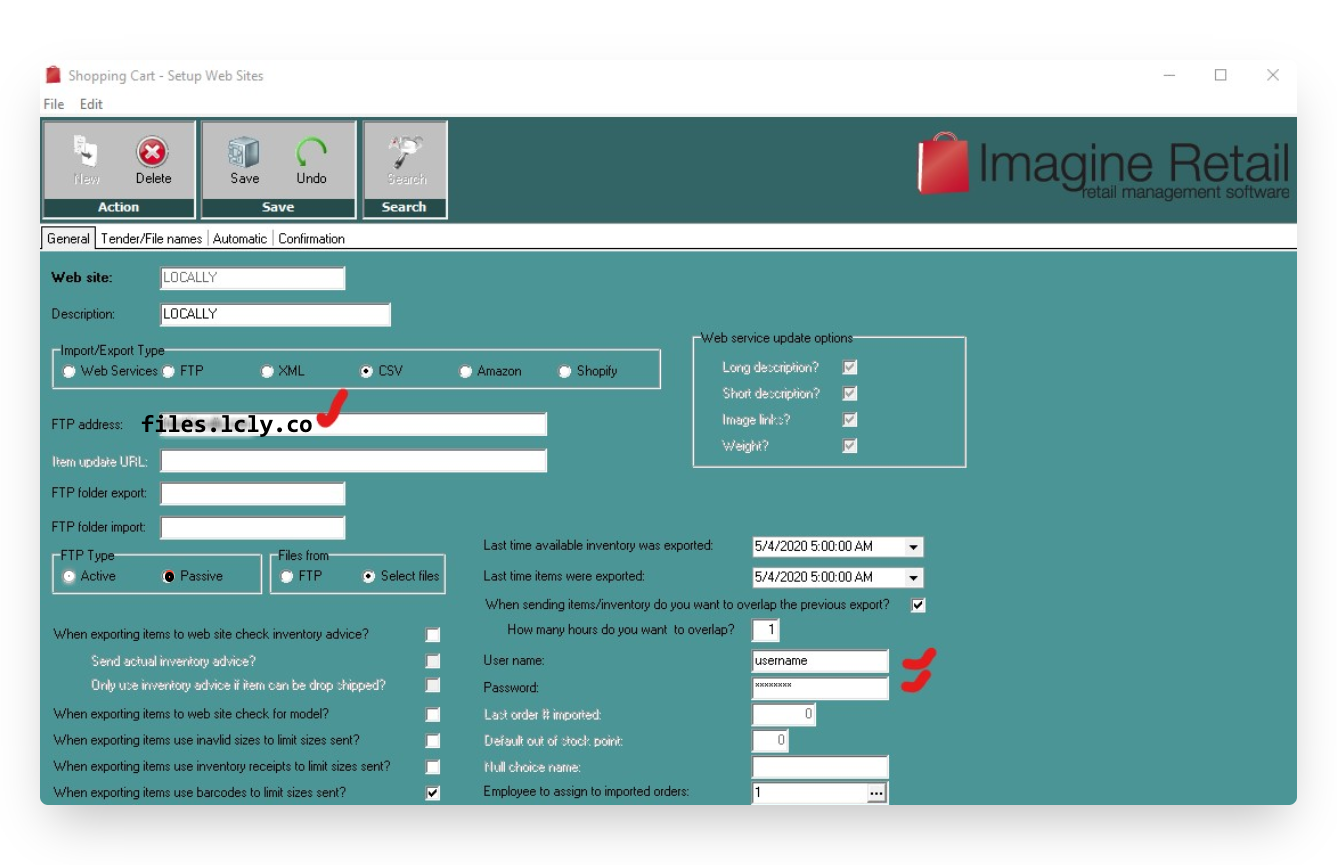
- Use Shopping Cart ? Web Site Setup to create a web site
- Create a web site for each store location you intend to show on Locally
- Mark the web site as CSV type
- Enter the SFTP server (ftp.locally.com) and credentials (user & pass) you generated in your Locally dashboard
- Check that you are only sending sizes with a valid barcode
- Enter the template name you create above under Inventory template name
- In the automatic section for Full Export select how often you want to send the inventory to Locally (at least once daily, or as often as every hour).
- The Imagine shopping cart service will now automatically create the CSV file and send via SFTP to Locally
- Email [email protected] when you are finished with the subject line "Activate Imagine Retail connection." If you included your prices in the report, please let Locally know that you've done so.
Updated 3 months ago
Did this page help you?