

Retail Pro v8
How do I connect my inventory with Retail Pro v8?
- Retail Pro v8.x includes a reporting function and a easy to use application scheduler that can be configured to export a list of in-stock UPC's and Quantities as often as you'd like.
- Create a SUMMARY report for each of your stores. Give them unique names.
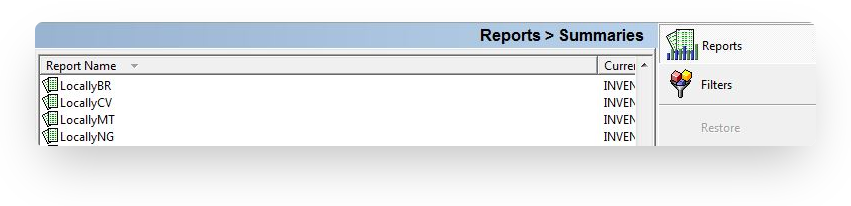
- If you have multiple stores, you will need to set up a filter for each that defines the specific store's inventory.
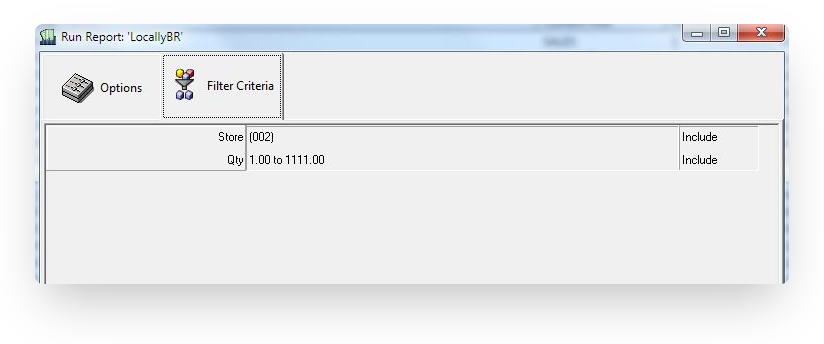
- Once you have a report for each location, now, create a GROUP that contains all of your Summary Reports.

- Once you have set up Reports and Groups, you'll need to SCHEDULE them to be created. Open Scheduler and create a new job. Note that the Parameters are defined by your Group name.
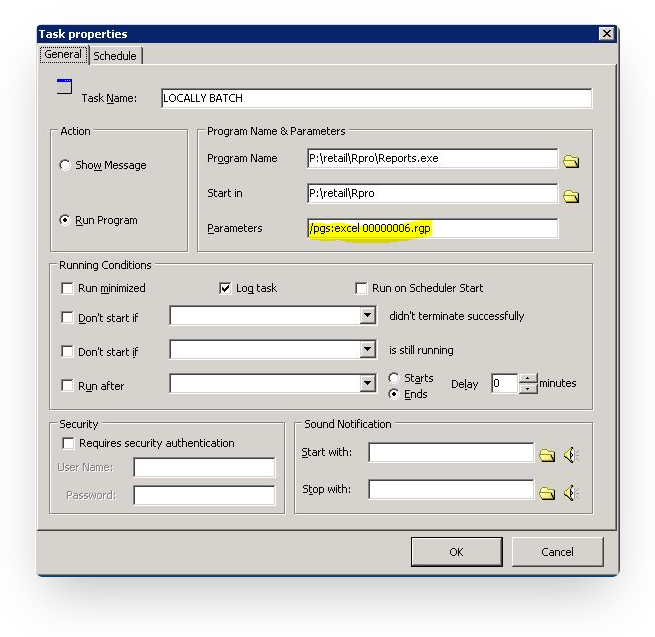
- Make sure Scheduler is running at all times.
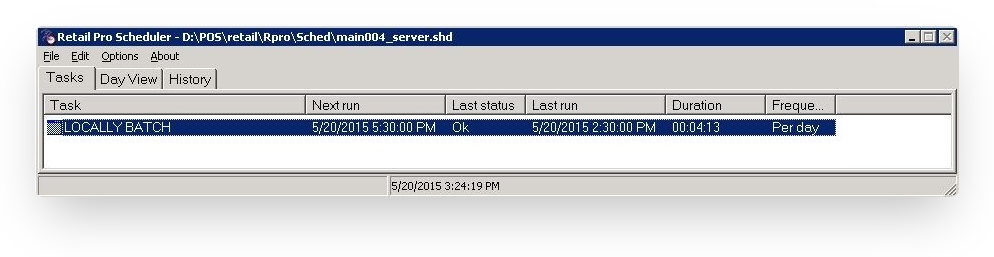
- Once scheduler creates the files, they will appear in the Print folder.
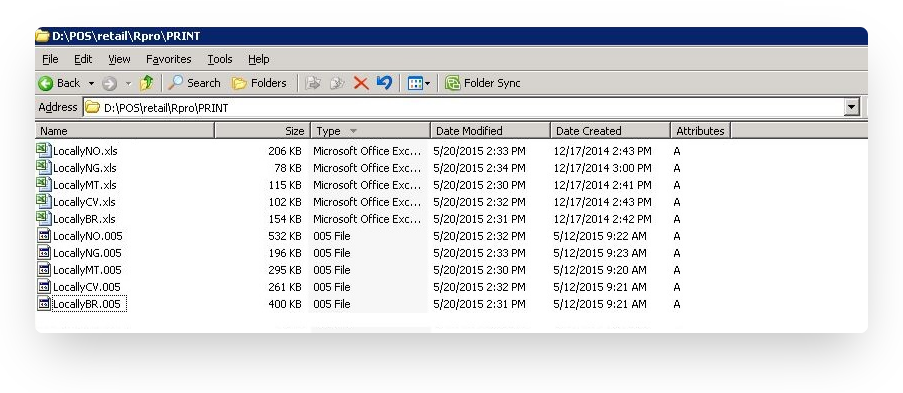
- Use Windows Task Scheduler to move files from \Retail\RPro\Print to DropBox.
- Create a Dropbox folder and name it "Locally_StoreName"(replace "StoreName" with the actual name of your store). Share the folder with [email protected] and then notify [email protected]. Drop your file(s) in the folder. Locally will link our system to scan this folder several times per day and absorb any changes.
If you need help automating the file creation or movement, contact your Retail Pro Support Team or one of the resources below.
Updated 3 months ago
Did this page help you?