

RICS
How do I connect my inventory with RICS?
- To activate the integration, email [email protected] and ask them to activate the Locally integration for your store(s). They'll have you sign off on an authorization, and then will put you in the queue to be activated.
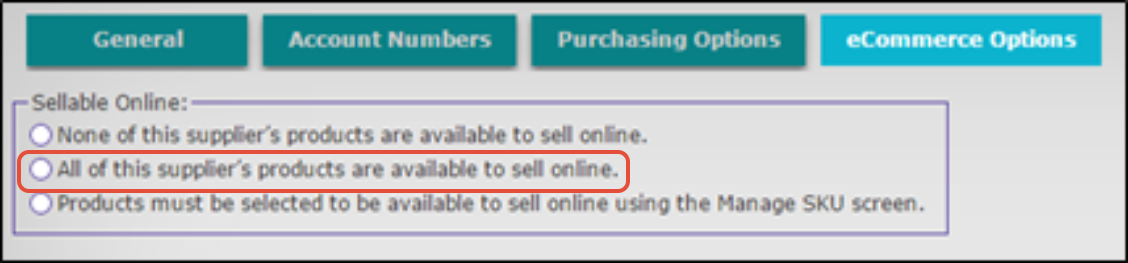
- When they've activated the integration for you, make sure you switch every brand in your POS to "Sellable Online" for the inventory to flow to Locally. RICS only sends us data for brands that you have listed as sellable online. We recommend you set all brands to Sellable Online at this time, so when brands go live on Locally, your inventory will automatically start appearing.
Enable Your In-Store Prices on Locally
Locally's real-time RICS connection does not include in-store prices. If you are interested in displaying your in-store prices on Locally, there is a daily inventory report that can be set up for your shop in RICS. Please reach out to [email protected] to get your inventory report with in-store prices set up. Learn more about displaying your in-store prices on Locally.
Need to Remove a Specific Product from your Feed?
First, load the style in RICS, and deselect "sellable online" for that product. Second, we need to reset your feed. To do this, contact us and tell us: "I need to reset my RICS feed because I need to remove [specific product(s)] from showing in my feed." We'll queue that reset with RICS and it'll be gone.
How to Process a Buy Online, Pickup In-Store (BOPIS) Order Through RICS
Please note that RICS users will still need to record Locally orders within RICS. For more information on updating sales in RICS, please refer to the PDF here.
Updated 3 months ago